Running a restaurant on Poster: what Eatery Club adds
Your restaurant already runs Poster and you are choosing what to add for guests. What the POS covers, what a kiosk adds, setup and cost components.


Loading audio…
—:—
Your restaurant runs on Poster. The menu and stock live in the POS, and orders come in from a server or over the phone. Now you are deciding what to add for guests: a kiosk by the counter, a website with delivery, or an app.
Before you compare offers, work out what Poster already does on its own. It covers part of the job with its own add-ons, and you should not pay twice for that.
What Poster covers with its own add-ons
Poster QR turns your menu into a mobile page behind a QR code and collects guest feedback. In the English documentation, Poster QR fits when your staff takes orders at tables and guests use the code to read the menu.
Ordering runs through Poster Site. By default Poster Site only lets guests view the menu online; the Website for orders plan lets them place orders for delivery or takeout. The order reaches your POS with an Online status, and a first-time customer is added to your customer database automatically.
Poster also works with guests on its own. It has a customer database, customer groups and bonus percentages, automatic movement between levels based on spend, and cards with barcodes. A cashier attaches the guest to the check by name, phone, card number or scan.
What is switched on differs by plan and by country. Poster QR and Poster Site are separate subscriptions on top of your plan, and the stop list, modifiers, promotions and delivery management are not in every plan either. Open the Poster plan comparison and check what your own subscription already includes before you buy anything else.
When restaurants add Eatery Club on top
Among the plans and add-ons listed on Poster’s own pricing page, which we reviewed in September 2026, there was no self-service kiosk and no branded guest app. Those are connected through separate apps in the Poster marketplace, and Eatery Club is one of them. Your POS stays where it is.
The difference is who recognizes the guest. In Poster a cashier does it at the register. A service on top of the POS adds a second route: the guest signs in themselves in the app, on the website or at the kiosk. Once a guest has signed in, a cash order lands in their history too.
The calculations still happen in the POS. Poster calculates levels, cashback percentage and bonus balance, and the Eatery panel displays the same values. The fields have to match the POS, or the guest sees one set of terms while the register applies another. Program terms are agreed once for every ordering route.
Guest segments and push notifications are created in the Eatery panel and are not sent to the POS. Poster’s own route for campaigns is different: export the customer list to an outside service, or connect a ready-made loyalty system.
How the menu and orders move between systems
Menu sync runs one way. Items, variants and modifiers arrive from Poster. For Poster, product categories and photos come across automatically, while for some other POS systems somebody has to tag them by hand.
Price, weight and ingredients are changed in the POS. An edit in the panel survives only until the next sync overwrites it.
Two actions look alike and behave differently, so separate them early. A dish added to the Poster stop list disappears for the guest automatically, and it goes back on sale in Poster. A product switched off or removed from the menu in the POS stays active in the panel until somebody switches it off there as well.
New items need a separate step too. They arrive in the panel inactive, so after every menu update somebody turns them on and checks their categories. The work is small but constant, which is why it belongs to a named person from day one.
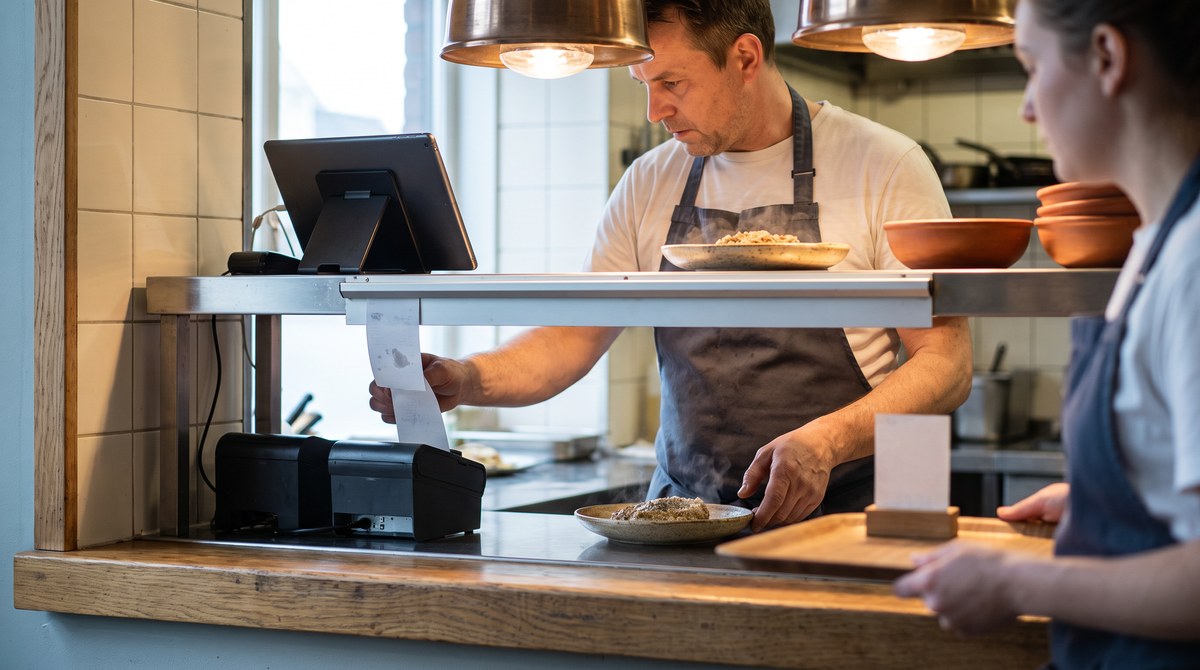
Orders travel the other way. In the restaurant card you pick the terminal and switch on sending orders to the POS. You can see the result on a live order, where an ERP ID appears. While that field is empty, the order has not reached the POS.
| What you set up | Where | What happens next |
|---|---|---|
| Items, prices, ingredients | In Poster | The panel displays them and adds photos and descriptions |
| Stop list | In Poster | The dish disappears for the guest automatically |
| Levels, cashback, bonus balance | In Poster | The panel shows the same values |
| Guest segments and push | In the Eatery panel | Not sent to the POS |
| Guest orders | On the Eatery Club website, app or kiosk | Sent to Poster, an ERP ID appears in the panel |
Poster kiosk integration
A Poster kiosk integration means a terminal in your dining room running Eatery Club software that sends the order to your Poster POS. Kiosk hardware is chosen separately and checked for compatibility with the Eatery Club software.
The guest picks dishes on screen, sees suggested add-ons and signs in to the loyalty program if they want to. Which payment methods appear depends on the provider you connect and the hardware you install: card payment needs a supported payment terminal, QR payment needs that provider to offer it, and cash is still taken at the counter. The order reaches Poster the same way an order from the website or the app does, and it shows that it came from a kiosk.
Agree the hardware before you buy it: device model, operating system version, screen size and orientation. A payment terminal, a receipt printer and a scanner for QR sign-in sit alongside it, and each device needs its own compatibility check and its own power.
Two things are decided separately, and they belong in the conversation before you set an opening date. The first is the receipt: which document your location has to issue, what has to be printed on it, and who sets that up. Requirements differ by country and sometimes by state, so confirm your own setup and test a real receipt before opening day.
The second is connectivity on site, because the kiosk loads its configuration and menu over the network. The rest of the network and peripheral settings are covered in the guide to kiosk devices.
Placement matters as well. A kiosk goes in the sightline from the entrance, the queue runs along a wall rather than across the walkway, and a staff member can reach it quickly. We worked through how to cost one in the article on kiosk payback.
Which costs to count separately
Your Poster subscription and its add-ons stay: the integration does not replace them. Platform costs sit on top. Break them into components and ask for a figure against each one.
- Platform fee. Subscription, commission per order or a flat rate, and what the package contains. Current terms are on the pricing page.
- Onboarding. A one-off integration fee. Ask for the conditions under which it is waived to be stated in your own quote.
- Hardware. For a kiosk: the terminal itself, a payment terminal, a printer, a scanner, a stand and installation.
- Card processing. Your payment provider’s commission under your own contract, separately from the subscription.
- SMS. Messages and confirmation codes are billed at your SMS provider’s rates. Check the price and billing arrangement with them.
- Local requirements. Receipt rules and accepted payment methods depend on where you operate and can differ by state. Confirm what applies to your location before you sign.
Bring the recurring payments onto one period and show the one-off items separately. Add your team’s time for menu preparation, staff training and working on offers. The list of ready integrations with POS systems, payment services and SMS providers is on the integrations page.
How to choose the first step
Start from one operating problem you can name, then look at what your Poster plan already does. If people queue at the counter during the rush and the room has space for a terminal, it is worth costing a kiosk. If orders arrive in messages and over the phone, look at the ordering website or the QR menu first.
None of these modules runs itself. A kiosk needs space, hardware, a connected payment provider and a receipt setup that meets your local rules. An app needs a reason for guests to install it. Every one of them needs a person who watches the menu after each sync.
At the demo, ask to see the whole path, from picking a dish to the order appearing in your Poster POS with your own menu. Ask who on your team will activate new items and who will own the receipt and payment setup at your location.
Before you start, write down the number you will judge the result by: average kiosk order value, online order count, or the share of guests who ordered a second time. Pick the one that matches your task and come back to it after the period you chose.
Then the decision about the next module rests on data from your own restaurant.
Published in
Anton Galiukin
Product Owner at Eatery Club. I specialise in digital innovation and product development. I write about technology and the HoReCa industry.
All stories by this author →