How to work with products in the admin panel
The «Продукти» section in the Eatery Club admin panel: ERP synchronization, activating a new product, ERP-managed data, and product card fields.
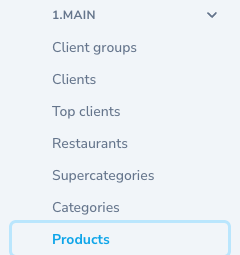
Updated: 07.10.2026The “Products” section lists every menu item of the restaurant. Open it from the “1.MAIN” group of the side menu, item “Products”. Products, variants and modifications arrive from the restaurant’s ERP system, and the synchronization is one-way.
How products appear
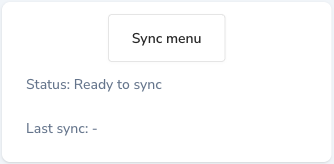
A new product is created in the ERP system and then pulled into the panel with the “Sync menu” button. Two status lines sit next to the button, “Status” and “Last sync”. New products arrive inactive, so after synchronization you activate them by hand.
The panel also lets you create a product manually with the “Create Product” button, but it warns that products created manually will not reach your accounting system. The manual creation form also requires an “API ID” value. So the working order is to create the product in the ERP.
What to change in the ERP instead of the panel
Price, weight and composition are edited in the ERP system: the next synchronization overwrites edits made in the panel. The stop list also comes from the ERP and is read-only in the panel.
A product deactivated in the ERP stays active in the panel, so such items are switched off in the panel separately.
How to activate a new product
- Create the product in the restaurant’s ERP system.
- Open the “Products” section and click “Sync menu”.
- If the page did not refresh by itself, reload it.
- Find the new product in the list.
- Open it for editing and turn “Активний” (active) on.
- Check “Категорії” (categories) and “Ресторани” (restaurants) so the product lands in the right menu.
- Save.
The fields of the product card
Field names below follow the Ukrainian source article; your panel may show different labels. The edit form contains these fields, in form order:
- “Аліас”
- “Ціна”
- “Стара ціна”
- “Нетто”
- “Одиниці виміру”
- “Зображення”
- “Відео”
- “Активний”
- “Ексклюзивний”
- “Ексклюзивно для кіоска”
- “SEO Keywords”
- “Відображення калорійності”
- “Калорійність (на 100 г)”
- “Калорійність у порції”
- “Жири (на 100 г)”
- “Жири у порції”
- “Вуглеводи (на 100 г)”
- “Вуглеводи у порції”
- “Білки (на 100 г)”
- “Білки у порції”
- “Штрих-код”
- “Категорії”
- “Алергени”
- “Мітки”
- “Ресторани”
- “Категорія робочого часу”
- “Рекомендований продукт”
- “Група продуктів”
- “Доступний для замовлення?”
- “Нарахування бонусів”
- “Закріплено”
- “Приховано в популярних”
The panel marks the required fields with an asterisk: “Аліас”, “Ціна”, “Нетто”, “Одиниці виміру”, “Активний” and “Доступний для замовлення?”. The last two are switches, and the asterisk next to them only means a value is always stored. The form does not make you turn them on: whether they are on is your decision.
What the card shows and the form does not edit
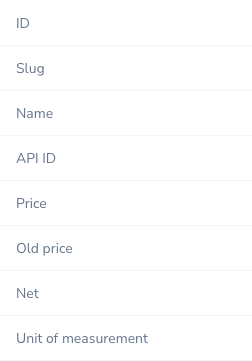
These values are visible on the product screen and absent from the edit form: “Найменування”, “API ID”, “Ціна в ресторанах”, “Акаунт”.
Separate panels at the bottom of the card open “Переклади”, “Модифікації”, “Категорії модифікацій”, “Варіації продукту”. The product variations block has a button for attaching a variant.