
Restaurant settings: card fields and common tasks
What the restaurant card holds in Eatery Club: the POS terminal, contacts, Telegram chats, payment, delivery, schedule and stop lists.
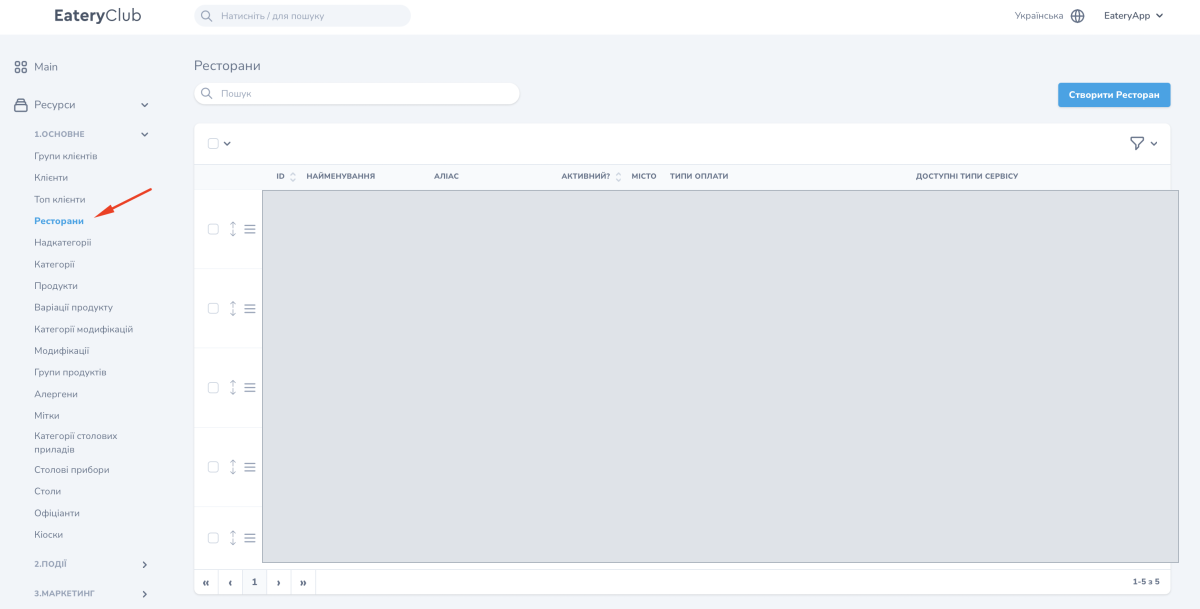
Updated: 07.10.2026The restaurant card holds the settings for a single location: contacts, payment, delivery, opening hours, visual assets and the link to your POS system (cash register). The restaurant list opens in the admin panel, under the «1.Основне» (main) group, item «Ресторани» (restaurants).
What do you want to do
The restaurant card is large, and most of this article describes its fields. If you have a specific task, use these short routes; if you need to understand a field, look for it in the sections below.
- Connect a new restaurant: the section «Adding a new restaurant».
- Set up Telegram notifications: the section «Setting up Telegram chats».
- Set working hours and pre-orders: the section «Setting up the schedule and pre-orders».
- Add social network links: the section «Adding social networks».
Adding a new restaurant
A new restaurant is added to the system by the Eatery Club team.
- Email the Eatery Club sales manager at sales@eatery.club and describe the venue you need connected.
- Once it is created, the restaurant appears in the list and is open for configuration.
- The restaurant’s city is mandatory. If the city you need is missing, create it first using the guide to city setup.
Restaurant list
Each restaurant takes one row of the list. The columns show «ID», «Найменування» (name), «Аліас» (alias), «Активний?» (active), «Місто» (city), «Типи оплати» (payment types) and «Доступні типи сервісу» (available service types). To open a card, click the view button in the restaurant’s row.
Core fields
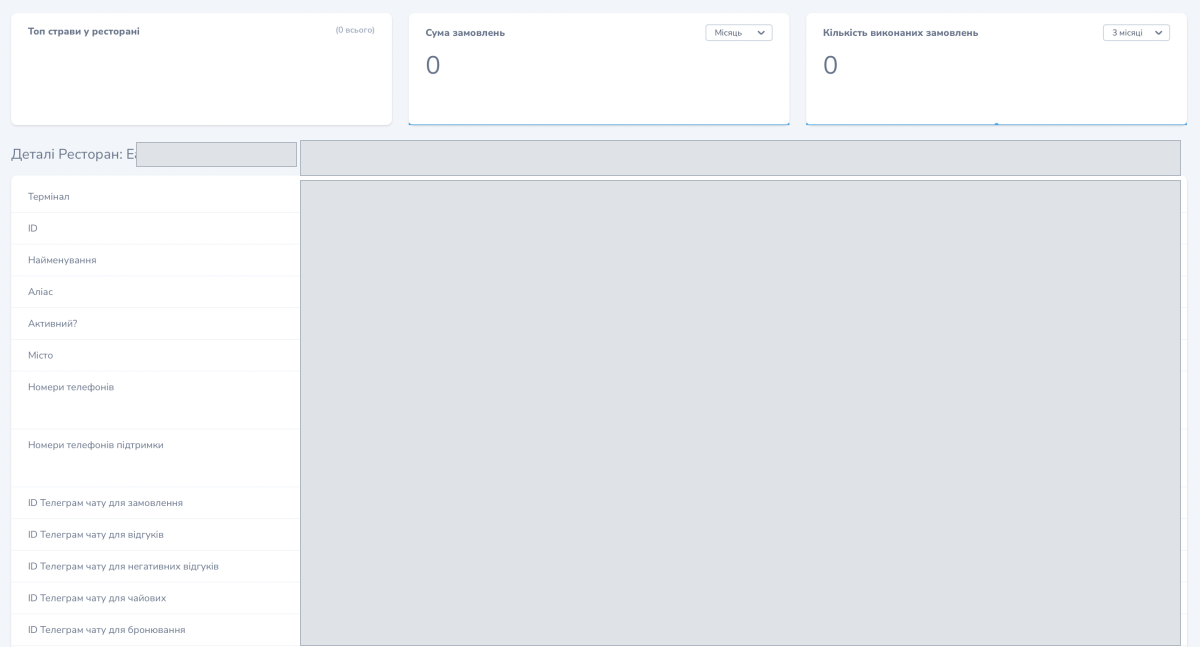
- «Terminal» («Термінал»): the cash register (POS/ERP) the restaurant is linked to. The Eatery Club team creates the ERP account first, and only then can you pick the terminal here. The order is described in the guide to iikoTransport and Poster accounts.
- «ID»: filled in automatically.
- «Name» («Найменування»): the restaurant name.
- «Alias» («Аліас»): an internal name. A guest sees it when the translated name is empty.
- «Active?» («Активний?»): «Так» (yes) or «Ні» (no).
- «City» («Місто»): a mandatory field.
Contacts
- «Phone numbers» («Номери телефонів»): the phone numbers a guest sees on the restaurant page. You can add several.
- «Support phone numbers» («Номери телефонів підтримки»): the phone numbers a guest sees when finishing an order. This is a separate list.
Telegram chats
Five fields hold chat IDs: «Telegram chat ID for orders» («ID Телеграм чату для замовлення»), «Telegram chat ID for reviews» («ID Телеграм чату для відгуків»), «Telegram chat ID for negative reviews» («ID Телеграм чату для негативних відгуків»), «Telegram chat ID for tips» («ID Телеграм чату для чайових») and «Telegram chat ID for reservations» («ID Телеграм чату для бронювання»).
- The order chat receives new-order notifications, and the review chat collects guest reviews.
- The negative-review chat receives reviews rated three stars or lower.
- The tips chat works together with the «Замовлення за столом» (table ordering) feature.
- Reservation requests are not passed to the POS system, so after the notification you contact the guest yourself.
Payment and menu
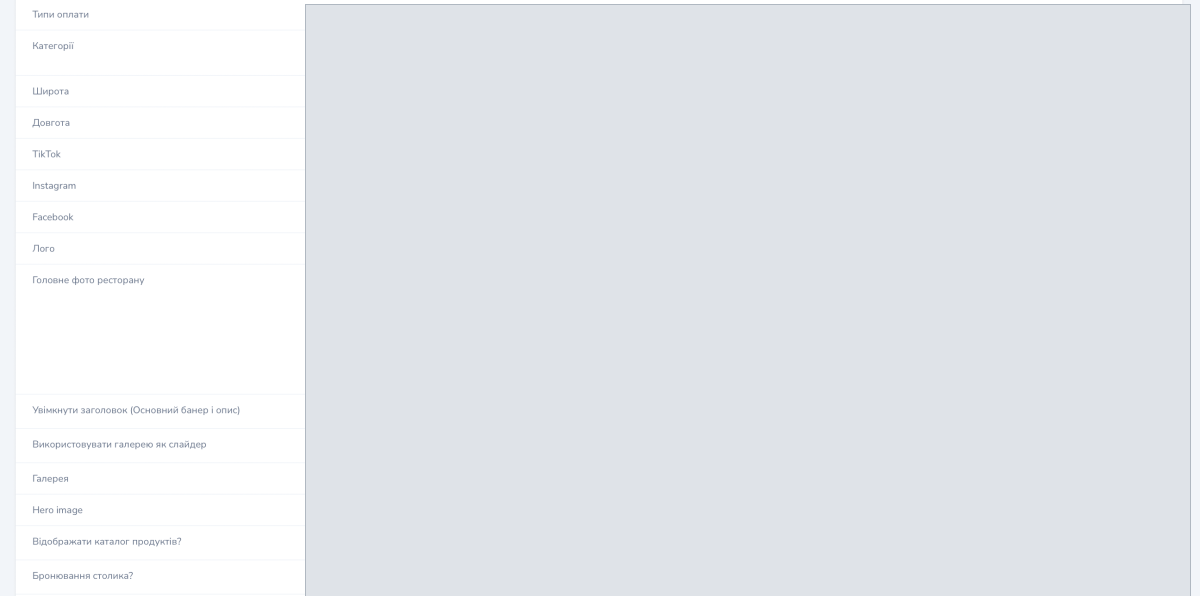
- «Payment types» («Типи оплати»): the payment methods available in this restaurant. You pick them from the list configured per the guide to payment types.
- «Categories» («Категорії»): the menu categories available in this restaurant.
Location and social networks
- «Latitude» («Широта») and «Longitude» («Довгота»): coordinates in decimal degrees.
- «TikTok», «Instagram» and «Facebook»: links to the restaurant’s accounts.
Visual assets
- «Logo» («Лого»): a square image. The form recommends a file of up to 2 MB and no more than 1024 × 1024 px.
- «Main restaurant photo» («Головне фото ресторану»): the form recommends a file of up to 2 MB and no more than 1000 × 620 px.
- «Show the header (main banner and description)» («Увімкнути заголовок (Основний банер і опис)»): show or hide the top block with the banner and description.
- «Use the gallery as a slider» («Використовувати галерею як слайдер»): show gallery photos as a slideshow.
- «Gallery» («Галерея»): several photos; the form recommends the same, up to 2 MB and no more than 1000 × 620 px.
- «Hero image»: the QR menu background. The form recommends a file of up to 7 MB and no more than 2000 px on a side.
Orders and delivery
- «Show the product catalogue?» («Відображати каталог продуктів?»): switched on, the field shows the guest your POS menu; switched off, it shows the PDF menu.
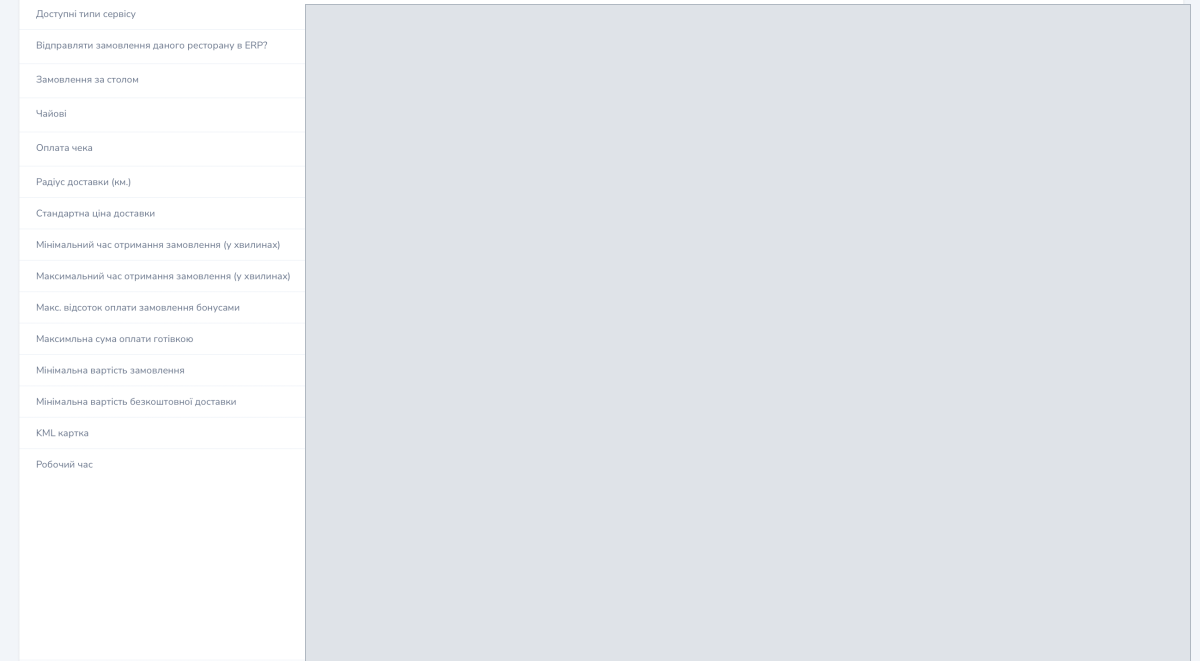
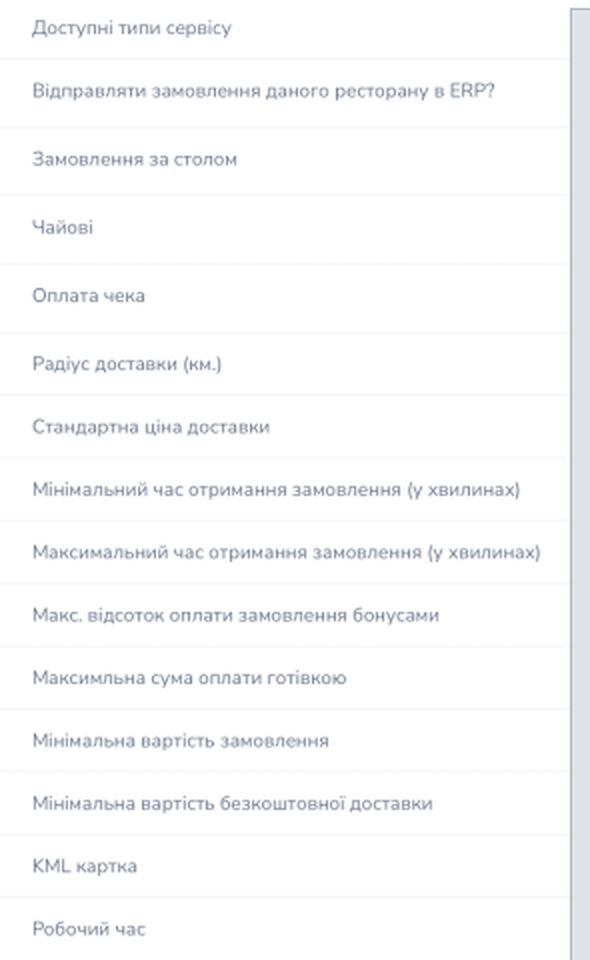
- «Available service types» («Доступні типи сервісу»): delivery, pickup, table ordering and ordering at a kiosk, either to eat in or to take out. Which service type pairs with which payment types is described in the guide to service types.
- «Send this restaurant’s orders to the ERP?» («Відправляти замовлення даного ресторану в ERP?»): must stay on so that orders reach the cash register.
- «Table ordering» («Замовлення за столом»): once enabled, the card lets you upload the restaurant floor map.
- «Tips» («Чайові») and «Bill payment» («Оплата чека»): available only while «Table ordering» («Замовлення за столом») is enabled.
- «Table reservation?» («Бронювання столика?»): reservation requests arrive in Telegram.
- «Delivery radius (km)» («Радіус доставки (км.)») and «Standard delivery price» («Стандартна ціна доставки»): both are ignored when delivery zones are configured for the restaurant.
- «KML map» («KML картка»): an optional field for a KML file of delivery zones, in addition to the polygon editor.
- «Minimum order fulfilment time (in minutes)» («Мінімальний час отримання замовлення (у хвилинах)»): preparation time.
- «Максимальний час отримання замовлення (у хвилинах)» (Maximum order pickup time, minutes): the upper bound of the time a guest can pick at checkout.
- «Регіон» (Region): the restaurant region, chosen from a list.
- «Minimum order amount» («Мінімальна вартість замовлення»): orders below this amount cannot be placed.
- «Minimum amount for free delivery» («Мінімальна вартість безкоштовної доставки»): from this amount delivery is free.
- «Максимальна сума оплати готівкою» (Maximum cash payment): above this amount cash payment is unavailable. The form notes that 0 means no limit.
- «Maximum share of the order payable with bonuses» («Макс. відсоток оплати замовлення бонусами»): the share of the order a guest can cover with loyalty points.
Separate switches on the card let you change the payment method after an order is placed and accept orders outside the schedule. One more switch opens group ordering: several guests add products to one order, each pays their own share, and a single joint order goes to the cash register.
Schedule
- «Working hours» («Робочий час»): for each day of the week you set the start and end time, «Працює» (open) and «Замовлення на завтра» (orders for tomorrow).
Delivery has its own schedule next to the opening hours. The «Orders for tomorrow» («Замовлення на завтра») switch is set per day of the week and lets you accept pre-orders for the next day.
Translations and stop lists
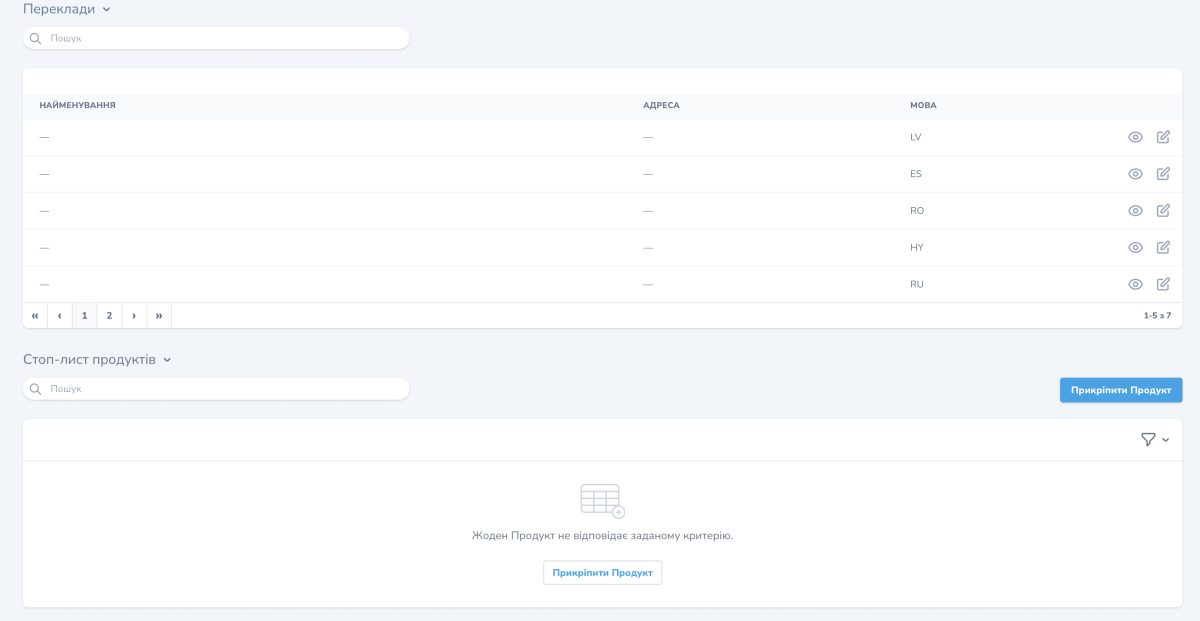
In the «Translations» («Переклади») block you translate the restaurant name and address.
When a product or a modification lands on the POS system’s stop list, it appears on the panel’s stop list automatically and becomes unavailable to order. To take an item off the stop list, change it in the POS system. For manual control the panel has a button that attaches a product.
Setting up Telegram chats
- Open the restaurant with the view button.
- In the top right corner click «⋯», then «Додати Telegram-групу» (add a Telegram group).
- Choose which chats to create: «Відгуки» (reviews), «Замовлення» (orders) or both.
- Confirm. The chats are created automatically and their IDs are written into the card’s fields.
Chat IDs for negative reviews, tips and reservations are filled in by hand or with help from support.
Setting up the schedule and pre-orders
- Open the restaurant and click «Редагувати» (edit).
- In the «Working hours» («Робочий час») block set the opening hours for each day.
- For the days when you accept pre-orders, switch on «Orders for tomorrow» («Замовлення на завтра»).
- Save your changes.
Check the result: open the restaurant card again and look at the «Working hours» («Робочий час») block. The hours and the «Orders for tomorrow» («Замовлення на завтра») marks for the days you chose should be saved there.
Adding social networks
- Open the restaurant and click «Редагувати».
- Fill in «TikTok», «Instagram» and «Facebook» with links to the restaurant’s accounts.
- Save your changes.
After saving, guests see the social icons on the restaurant page in the app and on the ordering site.
