
Delivery zones: fees and conditions for each zone
Delivery zones in the Eatery Club admin panel: fee, minimum order, free-delivery threshold, lead time, discount levels and two ways to define a zone.
Updated: 18.09.2026A delivery zone defines where the restaurant delivers and on what terms. The delivery fee, the minimum order amount, the free-delivery threshold, the lead time and the restaurant that serves the zone are all attached to it. Open the section from the «4.Доставка» (delivery) group of the side menu, item «Зона доставки» (delivery zone).
Once delivery zones are configured, the «Радіус доставки (км.)» (delivery radius, km) and «Стандартна ціна доставки» (default delivery fee) fields on the restaurant card stop working: the terms come from the zone.
How a zone is built
The section has two levels, and this is the main thing to understand before you start.
- A delivery zone is a card with an alias, a description and a map. The card itself holds no delivery terms.
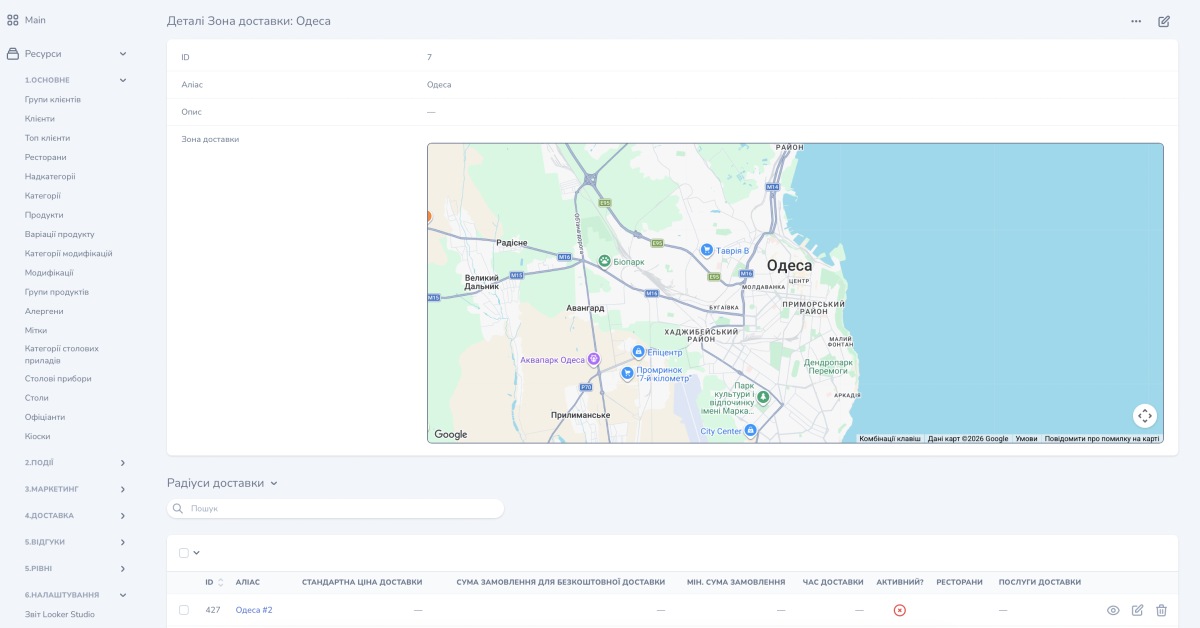
- The «Радіуси доставки» (delivery areas) rows inside the card are the areas themselves. Each row has its own alias, its own outline on the map and its own terms: the fee, the minimum amount, the lead time, the restaurant. One card can hold several such rows.
So the delivery fee is changed not on the zone card, but in the right «Радіуси доставки» row.
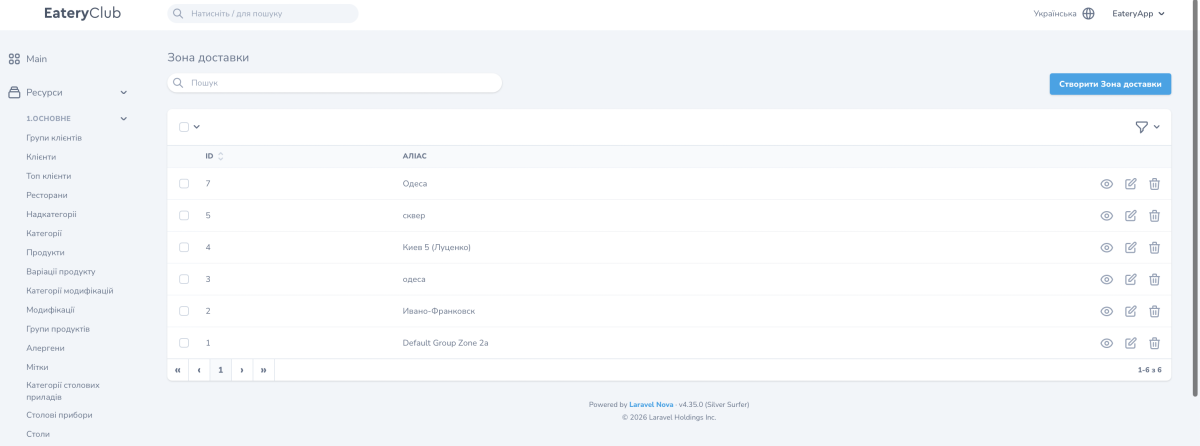
The zone list has two columns: «ID» and «АЛІАС» (alias). The alias is an internal name; the guest never sees it.
Fields of a «Радіуси доставки» row
The zone card holds «ID», «Аліас», «Опис» (description) and «Зона доставки» itself with the map. The terms sit below, in the rows of the «Радіуси доставки» block:
- «АЛІАС»: the name of this particular area. Required.
- «СТАНДАРТНА ЦІНА ДОСТАВКИ»: the default delivery fee in this area. Required.
- «СУМА ЗАМОВЛЕННЯ ДЛЯ БЕЗКОШТОВНОЇ ДОСТАВКИ»: the order amount from which delivery becomes free. Required.
- «МІН. СУМА ЗАМОВЛЕННЯ»: below this amount an order into the zone cannot be placed. Required.
- «ЧАС ДОСТАВКИ»: the lead time in minutes. Required.
- «АКТИВНИЙ?»: the on/off switch for the area. It always has a value, so there is nothing to fill in here.
- «РЕСТОРАНИ»: the restaurant that serves the area.
- «ПОСЛУГИ ДОСТАВКИ»: a choice from the list of delivery services set up in your POS. If the wrong service is selected, the delivery fee in the panel and the fee at the POS stop matching.
Delivery discount levels
Beyond the standard fee, an area row supports discount levels: an order-amount threshold gives its own delivery discount percentage. One level can halve the delivery fee, another can make it free. Levels are set in that same area row: for each one you enter the threshold amount and the percentage.
How to create a zone
A zone can be defined in two ways.
Draw the zone in the panel
- Open «Зона доставки» in the «4.Доставка» group of the side menu.
- Click «Створити Зона доставки» (create delivery zone).
- Enter «Аліас» — the internal name of the card.
- Pick a line color and use the shape-drawing control on the map.
- Trace the outline of the area and save the card.
- Open the card for editing and fill in the terms in the right row of the «Радіуси доставки» block: the area alias, the delivery fee, the free-delivery amount, the minimum amount, the lead time and the restaurant.
- Draw the next areas on the same map: a separate new map can overlap as a layer and display incorrectly.
Add a KML map on the restaurant card
- Add a prepared KML file on the restaurant card. The geometry for it is prepared in advance in Google Maps, usually on the restaurant’s side.
- That map is shown in the «Зона доставки» section, and you can edit it there: change the areas, change the delivery terms and add new ones.
- Deleting the KML map from the restaurant card does not remove a delivery zone that is already configured.
- If you create a zone in «Зона доставки» and separately add a KML file on the restaurant card, it appears as a separate zone.
How to change the delivery fee
- Open «Зона доставки» in the «4.Доставка» group of the side menu.
- Open the zone card you need.
- In the «Радіуси доставки» block, find the row of the area you are changing: use «АЛІАС» and «РЕСТОРАНИ» to identify it.
- Open that row with the edit button.
- Change «СТАНДАРТНА ЦІНА ДОСТАВКИ» and save.
If the restaurant works with a POS, check «ПОСЛУГИ ДОСТАВКИ» after the change: the selected delivery service has to be the one set up in your POS.
To confirm the change worked, add an item to the cart, enter an address inside this area and look at the delivery fee on the checkout page. You do not need to place the order.
