
Delivery settings: system parameters
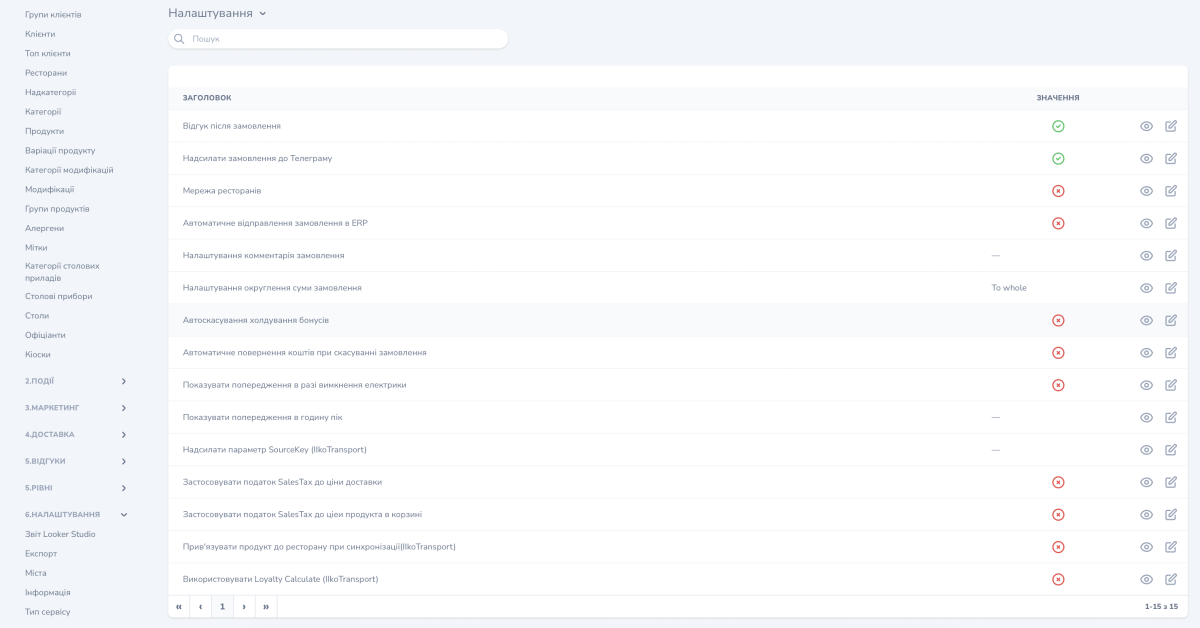
The 15 system delivery settings in the Eatery Club admin panel: sending orders to the ERP, total rounding, guest warnings and SalesTax.
Updated: 07.09.2026The «Налаштування» (settings) section in the «6.Налаштування» group holds the system switches for delivery: what goes to the POS, how the order total behaves, and which warnings the guest sees. The Eatery Club team sets most of them during project launch, so do not change them without agreeing it with support first.
The list has two columns: «ЗАГОЛОВОК» (title) with the name of the setting and «ЗНАЧЕННЯ» (value) with its current state. The section holds 15 settings in total.
What each setting does
- «Відгук після замовлення»: ask the guest to leave a review once the order is complete.
- «Надсилати замовлення до Телеграму»: copy every order into a Telegram chat.
- «Мережа ресторанів»: a switch for accounts that run more than one restaurant. Ask support what exactly it changes before you turn it on.
- «Автоматичне відправлення замовлення в ERP»: send orders to the POS automatically.
- «Налаштування комментарія замовлення»: what goes into the ERP comment field — payment type, points, number of guests.
- «Налаштування округлення суми замовлення»: how the order total is rounded.
- «Автоскасування холдування бонусів»: release the points hold automatically when an order is cancelled. Keep this one on.
- «Автоматичне повернення коштів при скасуванні замовлення»: refund an online payment automatically. Refunds work only for orders paid online.
- «Показувати попередження в разі вимкнення електрики»: show the guest a warning on the website and in the app.
- «Показувати попередження в годину пік»: warn the guest about a possible delay.
- «Надсилати параметр SourceKey (IIkoTransport)»: pass the SourceKey parameter to the iiko and Syrve integration.
- «Застосовувати податок SalesTax до ціни доставки»: add SalesTax to the delivery price.
- «Застосовувати податок SalesTax до ціеи продукта в корзині»: add SalesTax to the price of the products in the cart.
- «Прив’язувати продукт до ресторану при синхронізації(IIkoTransport)»: attach new products to the restaurant during a sync with iiko.
- «Використовувати Loyalty Calculate (IIkoTransport)»: an iiko integration switch. Ask support what exactly it changes before you turn it on.
Conditions for automatic transfer to the ERP
Automatic transfer of an order to the ERP works when three conditions hold at the same time:
- The restaurant settings have sending this restaurant’s orders to the ERP turned on.
- «Автоматичне відправлення замовлення в ERP» is turned on here.
- The delivery time interval field holds a value other than zero.
A zero in the delivery time interval breaks checkout before the order is even placed, so check that field first when a guest cannot order delivery.
SalesTax
Two switches add SalesTax separately to the delivery price and to the price of the products in the cart. Agree the rates and jurisdictions with the Eatery Club team before you turn both on, then check the tax amount on a test order.
How to turn on the peak-hour warning
- Open «Налаштування» in the «6.Налаштування» group of the side menu.
- Find «Показувати попередження в годину пік» and open it with the edit button.
- Turn the setting on and save.
Agree the wording of the warning with support.
