
Payment Types: Payment Methods for Guests
How to set up payment types in Eatery Club: how the payment type differs from the alias, the card fields, and what to do so the guest sees it.
Updated: 04.09.2026A payment type defines one specific way a guest can pay at checkout. Online methods rely on a payment system you created earlier.
How “Тип оплати” differs from “Аліас”
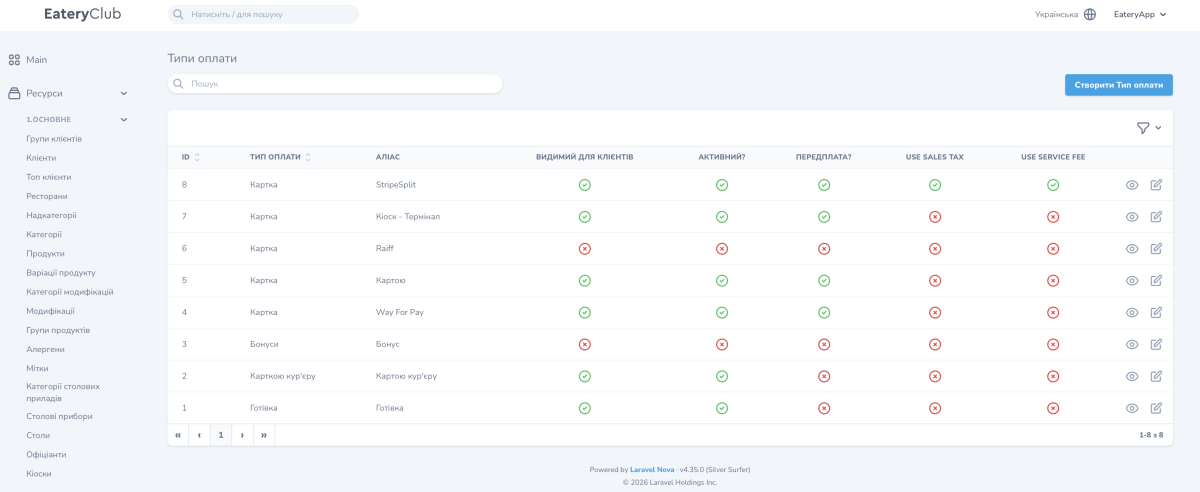
The payment types list has two columns that are easy to confuse. Both labels stay in Ukrainian in the panel.
- “Тип оплати”, the payment type. A value from the platform’s standard list. The panel shows “Готівка” (cash), “Карткою кур’єру” (card to the courier), “Картка” (card) and “Бонуси” (loyalty points).
- “Аліас”, the alias. Your own internal name for this particular record.
Several records can share the same “Тип оплати” and differ by “Аліас”. For example, four records with the type “Картка” and the aliases “Way For Pay”, “Raiff”, “StripeSplit” and “Кіоск – Термінал” are four different ways to pay by card through different payment systems.
Payment type fields
- “Платіжна система”, the payment system. The payment system this payment type runs on.
- “Тип оплати”, the payment type. A value from the platform’s standard list.
- “Аліас”, the alias. The internal name of the record.
- “Видимий для клієнтів”, visible to customers. Whether the guest sees this method at checkout.
- “Активний?”, active. Whether the record is available for selection.
- “Передплата?”, prepayment. The prepayment switch for this payment method.
- “Тип оплати в ERP”, the payment type in the ERP. The code of this payment method on the POS system (cash register) side. Correct hand-off of the payment to the POS system depends on it.
Fill in the “Переклади” block, the translations: the name the guest will see, for every language.
The payment types list shows “ID”, “Тип оплати”, “Аліас” and the state of the “Видимий для клієнтів”, “Активний?” and “Передплата?” switches for every record.
What to do so the payment type reaches the guest
Creating the record is not enough. Link the payment type to the restaurants where it applies and add it to the service types you need. Delivery, pickup, table ordering and kiosk each carry their own set of available payment methods.
How to create the payment type “Card online via Raiff”
- Create the Raiffeisen payment system if it does not exist yet.
- Open the “Типи оплати” section and click “Створити Тип оплати”.
- In the “Платіжна система” field, select the payment system you created.
- In the “Тип оплати” field, select “Картка”.
- In the “Аліас” field, enter a service name, for example raiff-online-card.
- Turn on “Видимий для клієнтів” and “Активний?”.
- If this payment method requires prepayment, turn on “Передплата?”.
- In the “Тип оплати в ERP” field, choose the code that matches this payment method in your POS system.
- Link the record to your restaurants.
- Save the record.
- Fill in the “Переклади” block: the name for the guest, for example “Card online”.
- Add this payment type to the service types you need.
