
Payment Systems: Connecting a Payment Provider
How to connect a payment system in Eatery Club: choosing a provider, entering access keys, and the order from payment system to payment type.
Updated: 04.09.2026A payment system stores the connection to a specific bank or payment service. Until that record exists, a guest cannot pay for an order online in the mobile app or on the ordering site.
The section is available to the account Owner only: payment keys are outside the Administrator’s access.
Connection order
Online payment becomes available to a guest after four steps, and each one builds on the previous.
- Create a payment system: choose a provider and enter the access keys.
- Create a payment type based on it.
- Link the payment type to your restaurants.
- Add the payment type to the service types you need.
Payment system fields
The panel labels stay in Ukrainian, so they are given here as they appear on screen.
- “Аліас”, the alias. The internal name of the record, for example “Stripe BASE”. Guests never see it.
- “Система”, the system. The provider you pick from the list.
- “Налаштування доступу”, the access settings. The keys and tokens issued by the provider. The set of fields depends on the provider, so check it with Eatery Club support.
- “Категорії”, the categories. Usually left empty.
- “Пов’язані платіжні системи”, the related payment systems. Usually left empty.
The provider issues the keys, not Eatery Club. If a key is entered incorrectly, the record still looks created in the list, but payments do not go through. Agree any key replacement on a payment system that is already running with Eatery Club support in advance.
The payment systems list shows “ID”, “Аліас” and “Система” for every record. The payment system card opens from there.
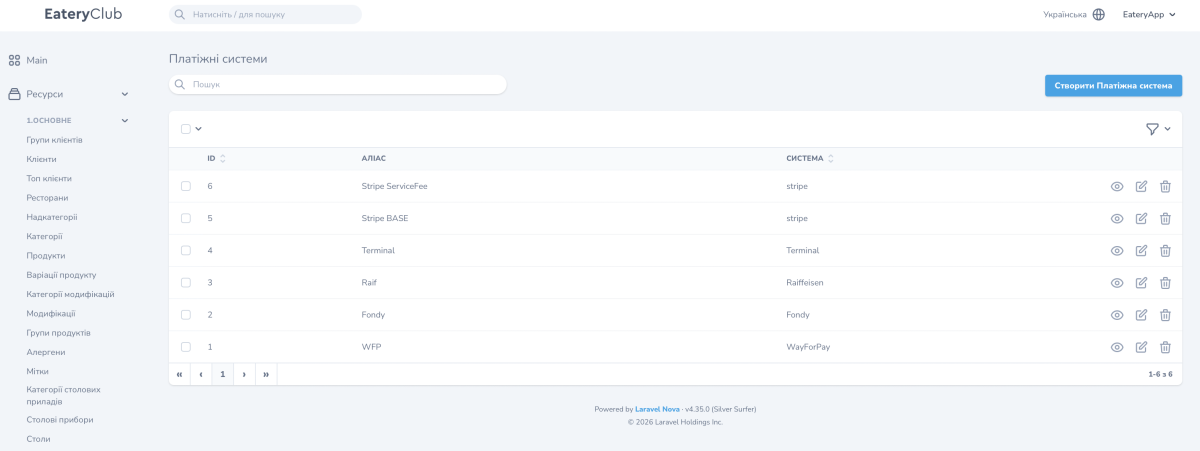
Values of the “Система” field
The platform defines the available values. Five of them are visible in the screenshot above: WayForPay, Raiffeisen, Fondy, stripe and Terminal. The last value corresponds to a physical bank terminal in a kiosk.
If the provider you need is not in the “Система” field, contact Eatery Club support.
How to connect WayForPay
- Get the connection details from Way For Pay: a merchant login and a secret key.
- Open the “Платіжні системи” section and click “Створити Платіжна система”.
- In the “Аліас” field, enter a service name, for example wayforpay-prod.
- In the “Система” field, select
WayForPay. - In “Налаштування доступу”, enter the details you received from the provider.
- Save the record.
- Create a payment type based on this payment system.
Before you start accepting real orders from guests, place one small order yourself and confirm that the payment goes through.
