
Promo codes: setup and limits
How a promo code gets from the ERP into the Eatery Club admin panel, which parameters the promo code card holds and how to switch it off early.
Updated: 13.10.2026A promo code is a discount code that a guest enters when placing an order. The code itself is created in the ERP system (the POS), while the «Промокоди» (Promo codes) section of the «3.Маркетинг» (Marketing) group is where you set its conditions and turn it on for guests.
The ERP first, then the panel
- Create the promotion in the ERP system. For Syrve, enable manual application in it, otherwise the promo code will not work on an order from the app.
- In the panel open the «Продукти» (Products) section and run the menu synchronization.
- After the synchronization the promo code appears in the «Промокоди» list as inactive.
- Open it, fill in the parameters and turn on «Активувати» (Activate).
A promo code is not created in the panel itself: the list has no create button, and the name and the «ERP ID» come from the POS. The menu synchronization order is described in How to work with products.
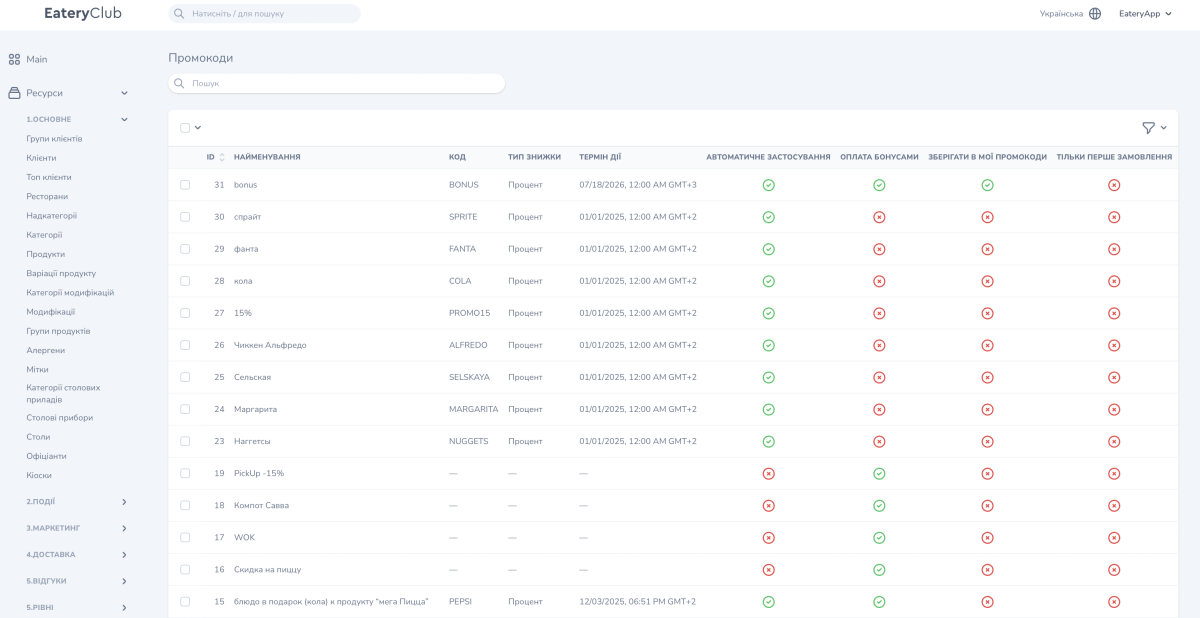
Promo code parameters
The promo code card consists of several groups of fields.
The discount value: «Значення» (Value) sets the amount and «Тип знижки» (Discount type) is chosen from a list. The list contains «Фіксована сума» (Fixed amount) and «Процент» (Percent). The discount is calculated from the order total.
The code and how it looks: «Код» (Code) is what the guest types, and the hint under the field warns that the same code cannot exist in different accounts. «Зображення» (Image) carries the hint «Максимальний розмір 60×60. Якщо не вказати то буде по замовчуванню виходячи з типу» (maximum size 60×60; if it is not set, a default based on the type is used).
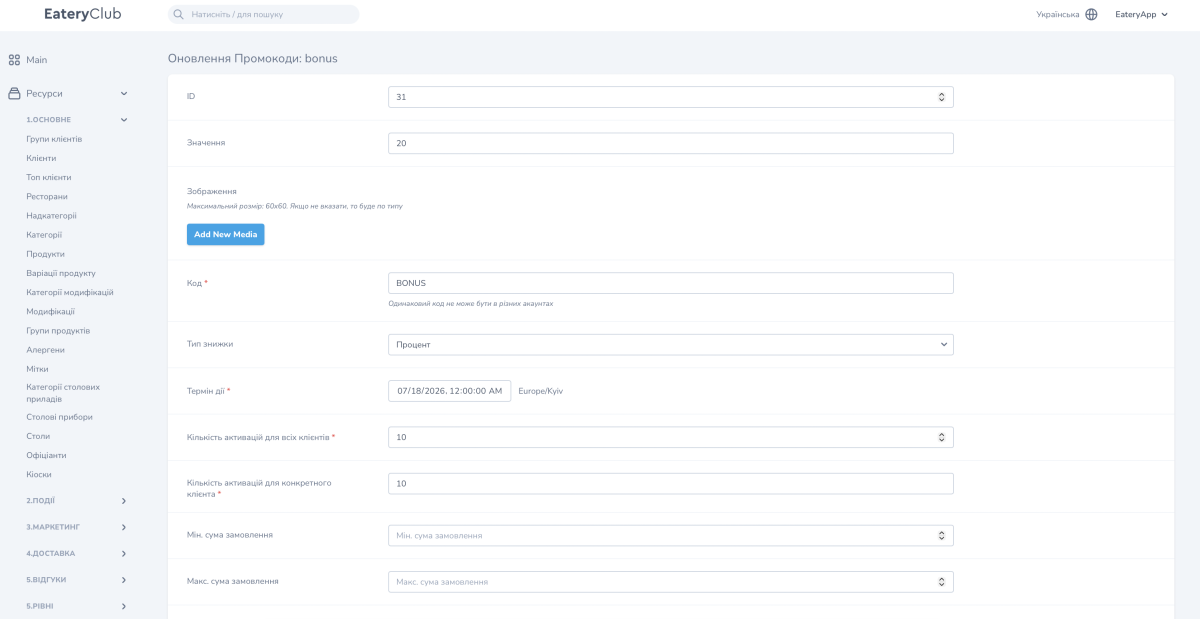
The term and the limits: «Термін дії» (Validity period) sets the end date and time. «Кількість активацій для всіх клієнтів» (Number of activations for all clients) and «Кількість активацій для конкретного клієнта» (Number of activations for one client) cap how many times it can be used.
Order conditions: «Мін. сума замовлення» (Minimum order amount) and «Макс. сума замовлення» (Maximum order amount) set the range in which the promo code applies.
Flags: «Автоматичне застосування» (Automatic application, the guest does not type the code), «Оплата бонусами» (Payment with points), «Зберегти в Мої промокоди» (Save to My promo codes), «Тільки перше замовлення» (First order only), «Прихований» (Hidden), «Промокод до дня народження» (Birthday promo code).
The scope: «Робочий час» (Working hours) sets a time range and a «Працює» (Works) switch for every day of the week. The card also has «Ресторани» (Restaurants), «Категорії» (Categories), «Продукти» (Products) and «Тип сервісу» (Service type) fields; three of these fields have a «Вибрати все» (Select all) checkbox. The service types come from the project settings and are described in Service type.

Translations
In the view mode of a promo code there is a «Переклади» (Translations) block with the «Найменування» (Name), «Опис» (Description) and «Мова» (Language) columns. Fill it in for every language of the project.
How to switch a promo code off early
- Open the promo code and go to editing.
- Turn off «Активувати» or set a past date in «Термін дії».
- Save.
