
Guest reviews: how to read and analyze ratings
How to read guest reviews in Eatery Club: the three metric tiles, the list columns, the rating filter, and a routine for negative reviews.
Updated: 08.10.2026The Reviews section («Відгуки») shows guest reviews: the comment, the overall rating and the answers to your additional questions. The review sections are grouped in the sidebar under Reviews («5.Відгуки»). Delivery reviews have their own section in the panel.
Tiles above the list
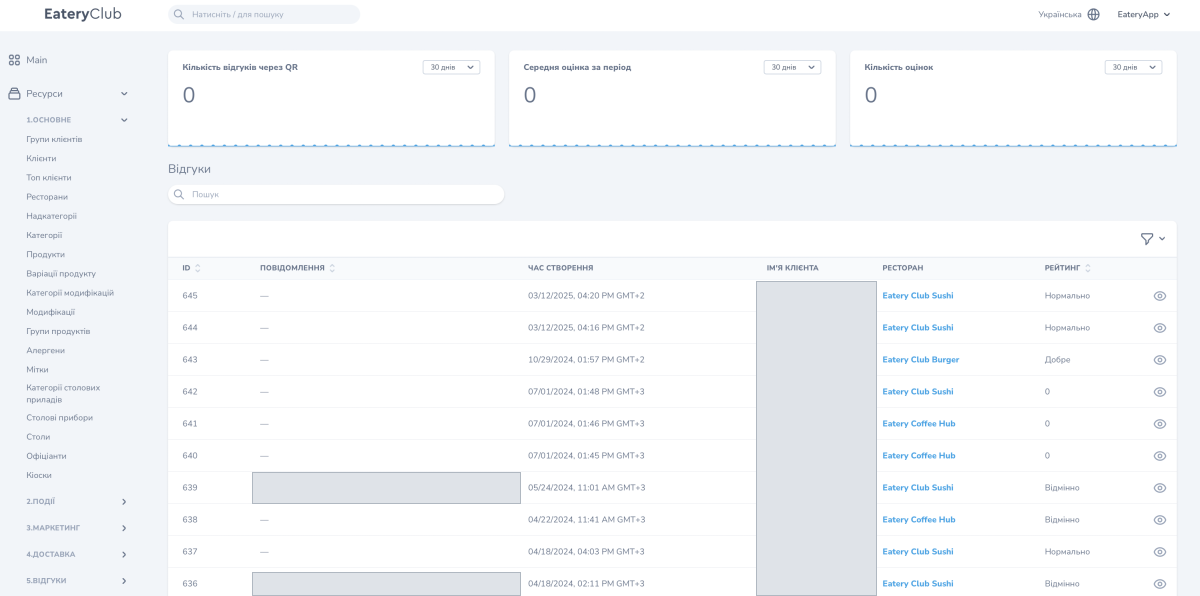
Three tiles sit above the list, each with its own period selector. In the screenshot all three are set to 30 days («30 днів»).
- QR Reviews («Кількість відгуків через QR»): how many reviews came through QR in the period selected in that tile.
- Average Rating («Середня оцінка за період»): the average rating for the period selected in that tile.
- Number of Ratings («Кількість оцінок»): how many ratings there are for the period selected in that tile.
The periods are set per tile, so before you compare the numbers with each other, check that the same period is selected in each. The page shows no comparison with the previous period: to see a trend, switch the period and record the values.
The review list
The list has the columns ID, Message («Повідомлення»), Created At («Час створення»), Customer Name («Ім’я клієнта»), Restaurant («Ресторан») and Rating («Рейтинг»). The customer name and the restaurant name open the matching records. The view button with an eye icon opens the review itself.
The Message column shows a dash when the review carries no comment text.
Rating and filter
The rating has five levels: Poor («Погано»), Fair («Терпимо»), Average («Нормально»), Good («Добре») and Excellent («Відмінно»). The same levels are available in the filter above the list. The search box searches the review content.
What a review shows
- the date and time, the comment and the overall rating;
- the guest name and the restaurant;
- the answers to your additional questions, when they are configured.
To add your own questions, see Review questions: custom ratings.
Work through negative reviews
- Open the Reviews section.
- In the rating filter, select Poor and go through those reviews, then do the same for Fair.
- In each review, read the comment, the restaurant and the answers to the questions.
- If you need more detail, open the guest record from the Customer Name column and contact the guest.
Related articles
- Delivery reviews: the separate section for delivery reviews.
- System push notifications: texts, visit rating and guests without a city: how to enable the visit rating request and set its delay.
