
App stories: images, links, and display dates
Add a vertical image, set a story’s display dates, and prepare its link and translations for the Eatery Club mobile app.
Updated: 09.09.2026Stories display vertical images in the iOS and Android mobile app. Use them for menu updates or announcements with a defined display period.
For a news feed post and a push notification, use events. This guide covers creating a story with an image.
Create a story
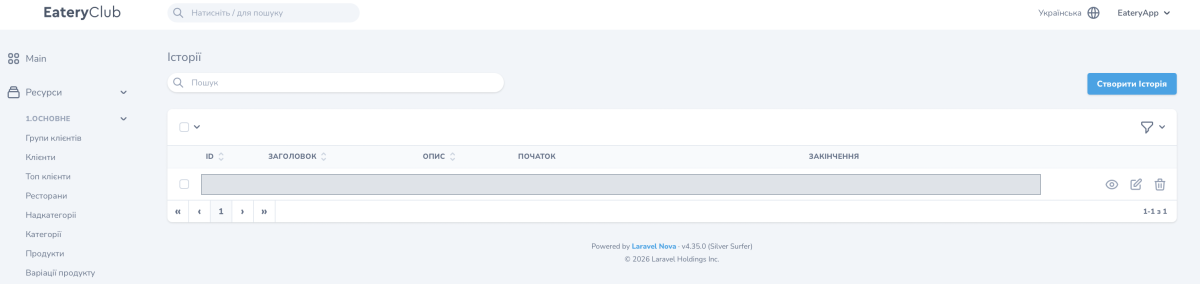
- In the Events group («Події»), open Stories («Історії») and select the button to create a story.
- Enter the title. Add a description if needed.
- Set the start and end dates. Check the time zone shown next to the fields. Allow time before the start to add translations and review the story.
- Add a vertical image. The form recommends a file up to 2 MB at 1080×1920 px (9:16).
- To open an external link from the story, select Link in Type and enter the external URL. Check the address before saving.
- Save the story using the create button.
Complete the translations
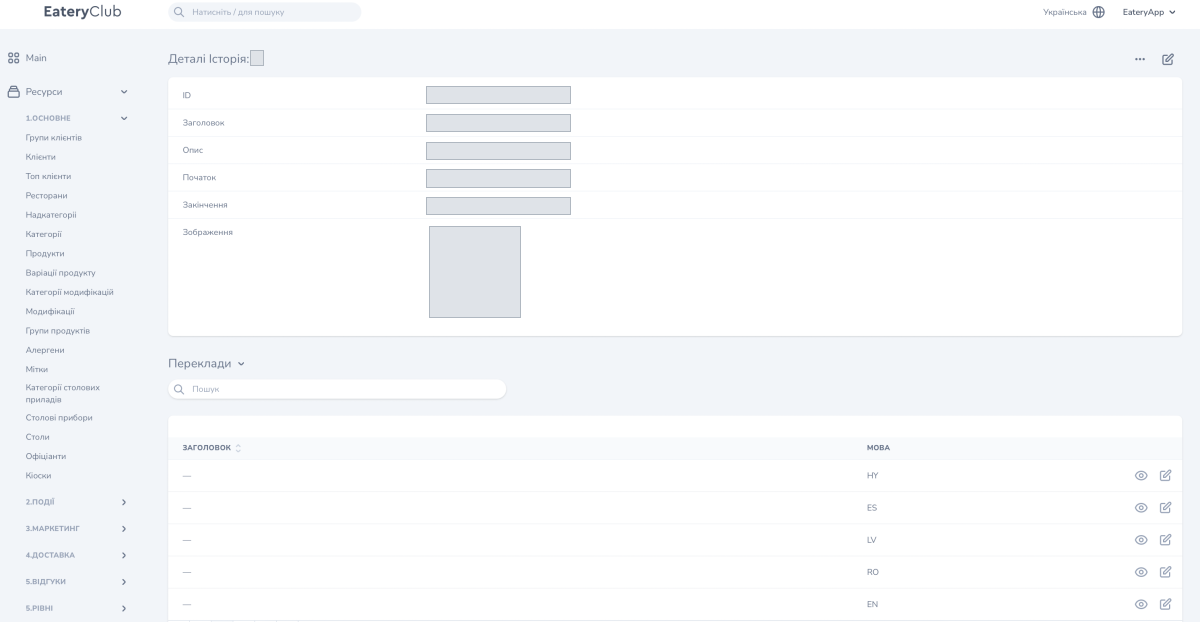
- Open the new story’s detail page and find Translations («Переклади»).
- Open the translation for each active language. Complete the title and description.
- If the story has an action, fill in Button Title in that language. For example, use “View menu” for a link to the menu.
- Save each translation before the story’s display period starts.
Check the story in the app
During the display period, open the app and check the image, text, button, and link. Repeat the check in the active languages. Make sure any text within the image is readable on a phone.
For multiple images, create a separate story for each one and set the required display dates. Check their order in the app; matching dates alone do not define a sequence.
