
Automated push notifications for birthdays and transactions
Set up birthday and last-transaction notifications in Eatery Club: timing, bonus point actions, translations, and activation.
Updated: 09.09.2026Automated notifications use a date from the guest’s profile: their birthday or last transaction. You set the condition, send time, and bonus point action.
Create a rule
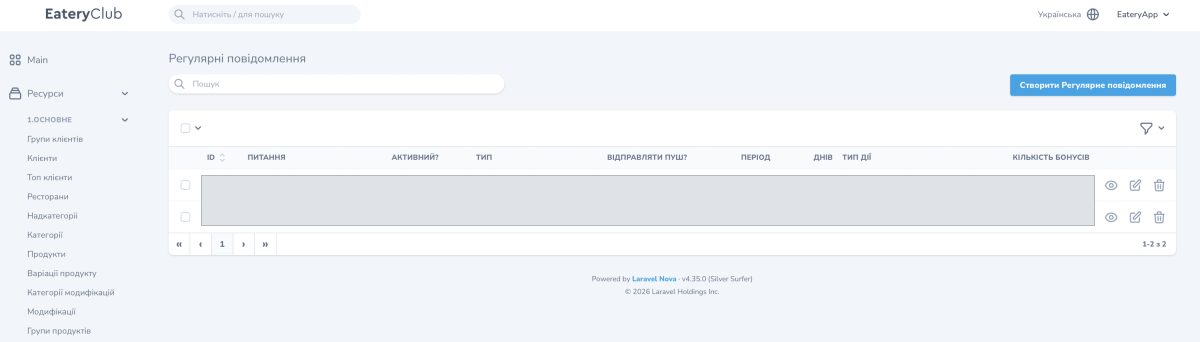
- In the Events group («Події»), open Regular notifications («Регулярні повідомлення») and create a record. Give it an internal name so you can find the rule later.
- While preparing the notification, set Active («Активний?») to No.
- Choose Birthday or Last transaction as the type. Under Period, select Before or After and enter the number of days. A value of 0 means the date itself.
- Set the send time. Enable Send push («Відправляти пуш?») if you want to send a notification to the guest.
- Choose the action: award or deduct points. Enter the number of bonus points according to your loyalty program’s terms.
- If needed, add a 1000×620 px image. Create the record with the rule still inactive.
Push delivery and the bonus point action are separate settings. Turning off push does not stop an active rule’s bonus action. To stop the entire rule, set Active to No.
Add translations and activate
- Open the new record’s detail page and find Translations («Переклади»).
- Open the translation for each active language. Enter its title and text, then save it.
- Check the translations, date, time, and bonus action. Then edit the main record, set Active to Yes, and save.
Provide the message in every language your guests use. A push is not sent if the translation for the guest’s language is missing. Receipt also depends on notification permission and device settings.
Example conditions
- Birthday greeting: choose Birthday, After, and 0 days. For example, use 10:00 and award 100 points if those terms match your loyalty program.
- Reminder after a break: choose Last transaction, After, and 30 days. This means 30 days after the last transaction; do not substitute the date of the last order.
For a one-time news post, use Events: news and push notifications. Standard order and visit review messages are covered in system push settings.
