
Tables and QR ordering at the table
How to edit a table number and name, mark a table inactive, sync tables with your ERP, and which restaurant settings affect ordering at the table.
Updated: 07.10.2026The Tables section (“Столи”) holds the physical tables in your restaurant. Tables reach the panel from your POS or ERP system (the point-of-sale and back-office system your restaurant runs on) during a sync.
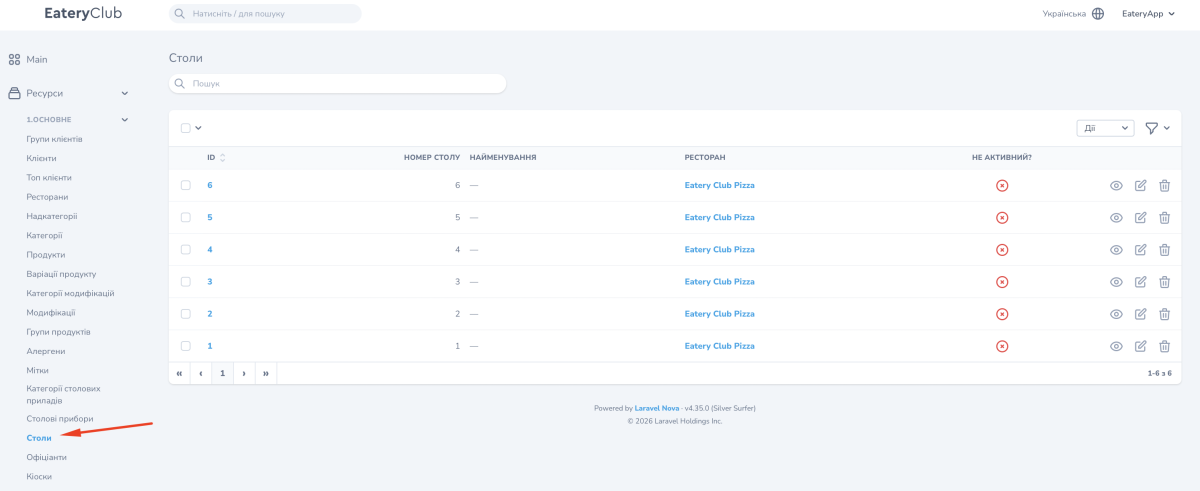
The list shows the ID, Table number (“Номер столу”), Name (“Найменування”), Restaurant (“Ресторан”) and Inactive? (“Не активний?”) columns. Each row ends with view, edit and delete icons.
What the edit form contains
The table edit form has three fields: Table number, Name and Inactive?. The restaurant appears on the table card but not in the edit form.
Rename a table
- In the sidebar, open Tables (“Столи”).
- Find the table with the search box or by scrolling the list.
- Click the edit icon (the pencil) in the table’s row.
- Change the Name field to something like “VIP” or “Terrace”.
- Save the change with the update button at the bottom of the form.
Mark a table inactive
- Open the table for editing.
- Turn on the Inactive? checkbox.
- Save the change.
- Go back to the list and check that the flag is stored in the Inactive? column.
Sync tables after a floor plan change
- Change the floor plan in your POS or ERP system.
- In the panel, open Tables (“Столи”).
- Above the list, open the actions menu: the “…” button, or the “Дії” (actions) list, depending on your panel version.
- Choose the ERP sync action.
- Reload the page and check the table numbers and names.
QR codes for ordering at the table
If the QR codes for your tables aren’t available in your panel, contact Eatery Club support to check how table QR codes are set up for your project.
Ordering at the table, bill payment and tips are separate settings on the restaurant card. Turn on only what your restaurant needs: in some places the guest just sends an order, in others they also pay the bill and leave a tip. Online payment works with a connected payment provider, and the switch alone doesn’t confirm that. Check separately that the available service types include a type for ordering at the table. The card’s fields are covered in Restaurant settings.
