
Product labels: visual tags on cards
The «Мітки» section in the Eatery Club admin panel: the fields of a label, how to create one, how to put it on a product and why it cannot be deleted.
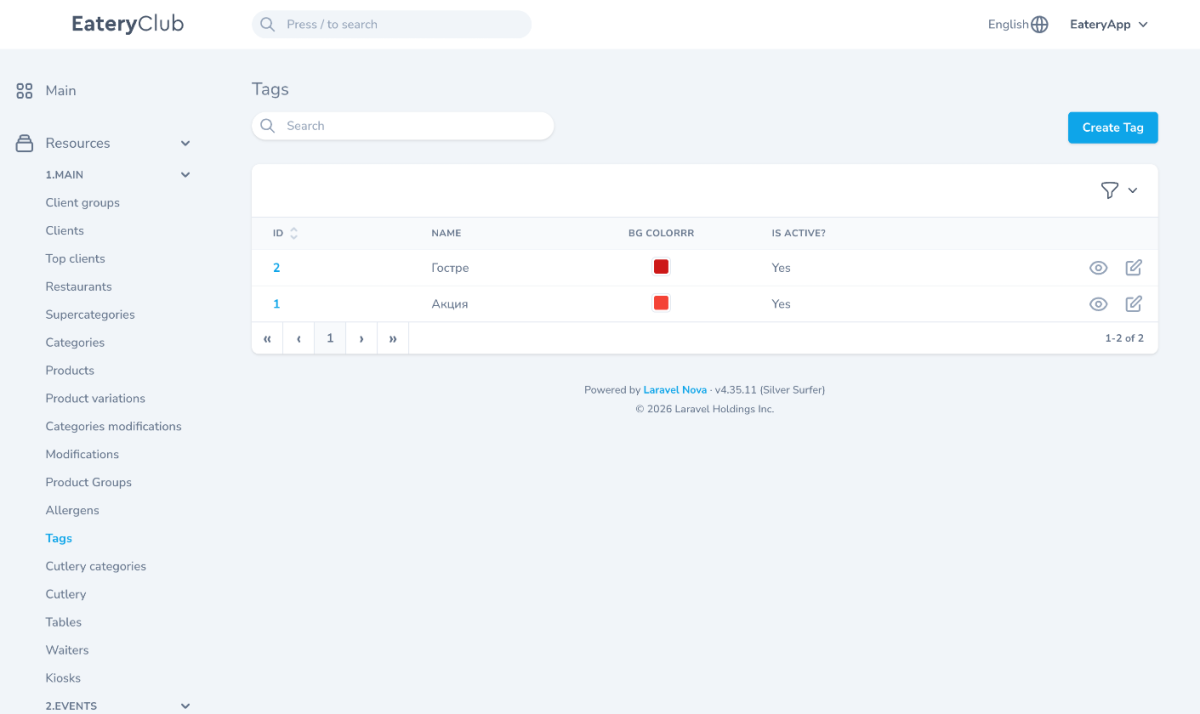
Updated: 07.10.2026Labels are the colored tags shown on a product card. Open the section from the “1.MAIN” (main) group of the side menu, item “Tags” (labels). The list holds the labels of your project.
The English list is “Tags” under “1.MAIN”.
The fields of a label
- “Найменування” (name): the name of the label.
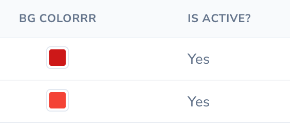
- “Bg colorrr”: the background color of the label. That is how the panel spells the field.
- “Активний?” (active): the state of the label.
- The form requires “Bg colorrr” and “Активний?”. It will let you save with “Найменування” empty, but then the label is impossible to recognize in the list, so always fill it in.
The list shows the same values in the “ID”, “NAME”, “BG COLORRR” and “IS ACTIVE?” columns.
How to create a label
- Open the “Tags” section.
- Click “Create Tag” (create label).
- Fill in “Найменування”, pick “Bg colorrr” and set “Активний?”.
- Save.
- Open the saved label for viewing and, in the “Переклади” (translations) block, add the name for every language: without translations the label is shown incorrectly on the product.
How to put a label on a product
- Open the “Продукти” (products) section and open the product for editing.
- Tick the label you need in the “Мітки” field.
- Save the product.
Labels cannot be deleted from this section
The rows of the list offer only “Перегляд” (view) and “Редагувати” (edit): this section has no delete action. So check the name and the color before saving, and change an existing label by editing it. If a label has to be removed completely, contact Eatery Club support.
