Allergens: labeling products
How to create an allergen in the Eatery Club admin panel, fill in its translations, and link it to products so the marker appears to guests.
Updated: 07.10.2026Allergens tell a guest which substances a dish contains. You create an allergen in the admin panel and link it to products, and the marker then appears on the product card in the mobile app and on the ordering website.
Allergens do not arrive from the point-of-sale (POS) system. This is data the restaurant maintains in the Eatery Club panel, whereas the products themselves arrive from the POS system during synchronization.
Fields
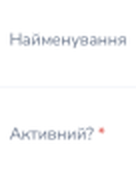
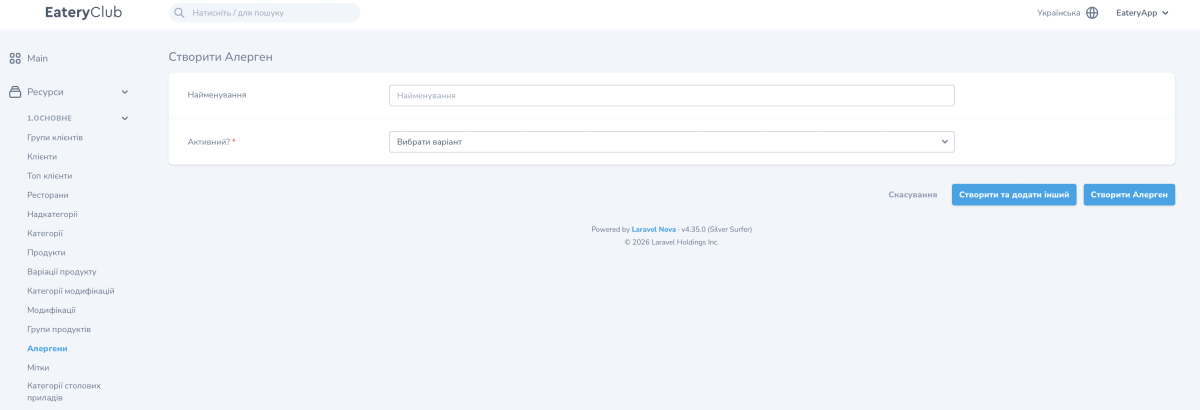
- «Найменування». The internal name of the allergen in the admin panel.
- «Активний?». Controls whether the allergen is shown to guests. An inactive allergen is not shown.
- Only «Активний?» is marked with an asterisk in the form: select «Так» (yes) or «Ні» (no) from the list. «Найменування» is not marked as required, but fill it in so you can identify the allergen in the list.
Guests see the translations, so fill them in for every language: without a translation the allergen is displayed incorrectly.
How to create an allergen
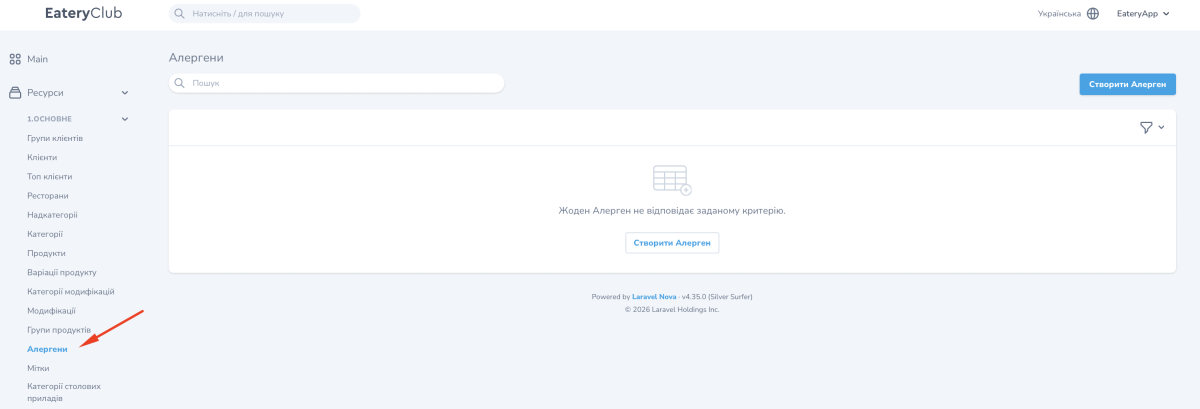
- Open «Ресурси» (resources), the «1.ОСНОВНЕ» (main) group, the «Алергени» item, and click «Створити Алерген».
- Enter the name and select «Так» (yes) in «Активний?».
- Save the allergen.
- Fill in the «Переклади» block: the name for every language.
Until the allergen is linked to a product, it is visible only in the admin panel.
How to link an allergen to a product
- Open the «Продукти» section and find the product you need.
- Click «Редагувати».
- Select the allergens you need and click «Оновити продукт».
The full procedure for product cards is in the guide to products in the admin panel.
Where to find it in the admin panel
«Ресурси» (resources), the «1.ОСНОВНЕ» (main) group, the «Алергени» item: the list of allergens you have created and their status. The allergen card opens from here, and the translations are filled in there.