
Orders: the list, statuses and actions
The orders section in the Eatery Club admin panel: list columns, statuses, order card fields, manual sending to the POS, courier assignment and refunds.
Updated: 07.09.2026The «Замовлення» (orders) section shows every order in the project: from the website, the app, a kiosk and the QR menu. It shows the status of each order, how the payment is made up and whether the order reached the POS. Open the section from the «4.Доставка» (delivery) group of the side menu, item «Замовлення».
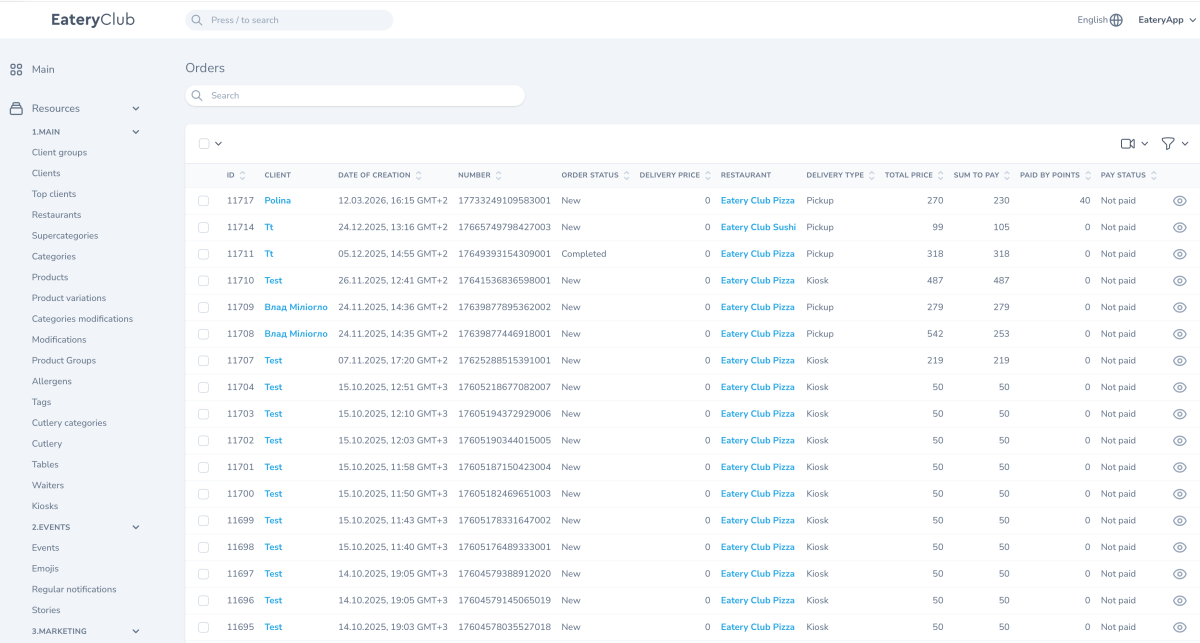
List columns
- «ID»: the internal order number in Eatery Club.
- «КЛІЄНТ»: a link to the guest profile.
- «ДАТА СТВОРЕННЯ»: when the order was created.
- «НОМЕР»: the order number.
- «СТАТУС ЗАМОВЛЕННЯ»: the current status.
- «ВАРТІСТЬ ДОСТАВКИ»: the delivery amount.
- «РЕСТОРАН»: the restaurant fulfilling the order.
- «ТИП ДОСТАВКИ»: how the guest receives the order.
- «ВАРТІСТЬ ЗАМОВЛЕННЯ» and «СУМА ДО СПЛАТИ»: the products total and the amount due.
Payment columns follow further along the row. Above the list on the right there is a filter button and a button for the section of unpaid orders with online payment: it shows orders that were created but not confirmed by the bank, which is what you need for payment diagnostics.
Order statuses
- A delivery order moves through its statuses in sequence: created, accepted, cooking, cooked, on the road, completed.
- Pickup skips the on-the-road status: a cooked order goes straight to completed.
- Cancellation is possible from any intermediate status.
- The completed and cancelled statuses are irreversible.
In the list the status is shown as an interface label; the screenshot shows «Нове» (new) and «Виконане» (completed). The time of the status transitions is stored on the order itself.
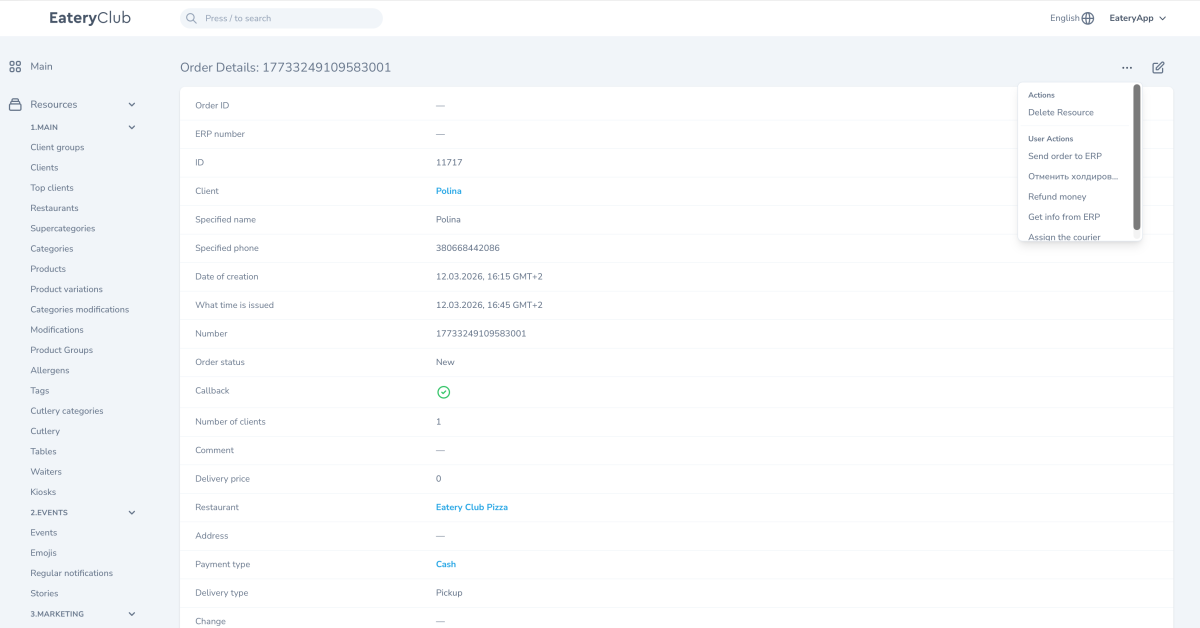
Order card fields
- «ID замовлення»: the ID in the POS system. Empty until the order is synced with the POS.
- «Номер замовлення»: the order number in the POS system.
- «ID» and «Номер»: the internal Eatery Club identifiers.
- «Клієнт»: a link to the guest profile.
- «Вказане ім’я» and «Вказаний телефон»: the contact details the guest entered at checkout.
- «Дата створення» and «На яку годину оформлено»: when the order was created and the time the guest expects it.
- «Статус замовлення»: the current status.
- «Чи передзвонювати?»: whether the guest asked for a confirmation call.
- «Кількість клієнтів»: how many people the order is for.
- «Коментар»: the text from the guest.
- «Вартість доставки»: the delivery amount.
Actions on the order card
- «Відправити замовлення в ERP»: send the order to the POS manually. Available for orders without an ID in the POS system.
- «Отменить холдирование»: release the points hold placed at checkout.
- «Повернути кошти»: refund the payment. Works only for orders paid online.
- «Отримати інфо з ERP»: look at the POS response for the order. Available for Syrve only.
- «Призначити кур’єра»: attach the order to a courier from the «Кур’єри» section.
- «Видалити ресурс»: delete the order completely. Irreversible, so use it only for test and mistakenly created orders.
How to send an order to the POS manually
- Open the card of the order that did not reach the POS.
- Check that «ID замовлення» is empty. If it holds a value the order is already at the POS — contact support.
- In the «⋯» actions menu choose «Відправити замовлення в ERP».
- Click «Виконати дію» (perform the action).
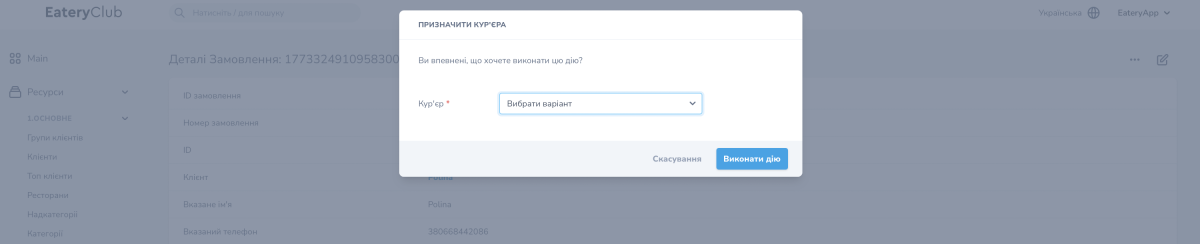
How to assign a courier
- Open the order card.
- In the «⋯» actions menu choose «Призначити кур’єра».
- Pick the courier from the «Кур’єр» field.
- Click «Виконати дію».
When not to edit an order
The core order logic lives in the POS system. Incorrect changes to the status or the payment in the panel can create a gap between the panel and the POS, so edit by hand only in exceptional cases and write down what you changed.
