Restaurant SEO playbook for the zero-click era
A one-hour check of your Google profile and website, a local SEO checklist for one location or a chain, what you can count, and a three-month plan.


Loading audio…
—:—
A guest looking for somewhere to have dinner sees a map, opening hours, photos, and reviews on Google. They open the menu, then call, get directions, or order delivery straight from the restaurant’s profile. They never reach the website, so the site’s analytics never see them.
This was already true before AI Overviews, but Google now answers more questions right on the results page. Website traffic alone no longer shows how many guests a restaurant gets from search. It is more useful to check whether guests see the right facts on Google and whether they can call, get directions, or order from that same screen.
The first check of one location takes about an hour; the plan for fixes and counting covers three months.
Where guests see a restaurant in search
When a guest looks for a restaurant on Google, one results page can show it in three places:
- A map with several places nearby. For a search like “ramen near me,” Google often shows a map with several restaurants at the top (known as the local pack). Tapping a restaurant in that block or in Google Maps opens its profile. The Google Business Profile has the hours, phone number, photos, reviews, menu, and buttons to call, get directions, and order.
- An ordinary link to your website among the results below. The site holds what the profile may lack: the full menu with prices, online ordering, and a page for each location.
- An AI Overview above the results. It does not always appear; it assembles an answer from several sources and may cite your site or other sites.
ChatGPT and Gemini work separately from Google Search. There, a guest asks in a conversation, and the assistant decides whether to show sources and which ones.
What Google shows depends on the search. In a Whitespark study (May 2025, 540 searches in three US cities, six industries), searches with local intent almost always showed a map and only rarely an AI Overview. For informational searches, an AI Overview was much more common than a map. So for searches like “where to eat near me,” check the profile first.
By Pew Research Center’s count, an AI Overview appeared in about one in five Google searches by US adults in spring 2025, more often for questions and longer searches, though not always for those either (Pew study). Only running the search will show whether an overview appears for a search with conditions, such as “dim sum for a party of 12 on Sunday” or “gluten-free pizza near the stadium.” Google sets no special technical requirements for AI Overviews and AI Mode: the page must be indexed and eligible to appear with a snippet in regular Google Search, and inclusion is not guaranteed (Google Search Central).
Pew also analyzed the browsing of 900 US adults in 2025. When a results page had an AI Overview, people clicked an ordinary link on 8% of visits; without one, they did so on 15%. They clicked a link inside the overview itself on just 1% of visits. The researchers rebuilt the results pages by repeating the searches a few weeks after the visits, and the searches were not limited to any topic, so this is an observed difference, not proof of what overviews do, and it cannot be carried over to restaurant searches.
A drop in sessions from search does not, on its own, show how many guests Google brings in. Only a handful of facts have to match everywhere: name, address, hours, phone, menu, prices, and where to order. They appear on the profile, your site, your POS, and delivery apps. Find the copies that disagree, then reduce the number of places where each fact is entered by hand.
A quick look at one location
For one location, this takes about an hour: you see the restaurant through a guest’s eyes and write down what is wrong. It does not cover markup, indexing, or a chain of locations; those are separate technical checks.
Search like a guest. On a phone, signed out of your Google account, run three searches: your restaurant’s name; your category and area, such as “ramen near me” or “tacos in Midtown”; and a condition that matters to guests, such as “kid-friendly restaurants” or “vegan brunch with outdoor seating.” For each one, note what showed up first (the map, an AI Overview, or ordinary links), whether you appear, which sources the AI Overview cites, and whether the hours, phone number, and menu are right.
Google ranks local results mainly by relevance, distance from the guest, and the business’s prominence, so search from a place your guests might search from, and if many guests come from another neighborhood, search again from there (Business Profile Help). What you see is a snapshot: from another place or on another day, the results may differ.
Quick profile check
| Check | All good when |
|---|---|
| Verification | The profile is verified, under the name on your sign |
| Primary category | It names what you serve, for example “Pizza restaurant” |
| Hours | They match the sign on the door, including special hours for the next holiday |
| Phone | Calls reach someone who answers during opening hours |
| Menu | The menu link opens a page with dishes and prices; any uploaded menu photos or PDF are current |
| Order links | Your own ordering page is among them |
| Attributes | Service options, accessibility, parking, and payments are filled in where your category and country offer them |
| Photos | There are recent photos of dishes, the dining room, and the entrance |
| Reviews | Recent reviews have replies |
Order links. A guest can order straight from the profile without opening your site, so tap every link in the ordering block and write down where it goes: Google and delivery services add some links themselves. Schedule the fixes for days 15 to 30 (manage online ordering):
- add a link to your own ordering page if it is missing;
- mark your preferred option; Google lets you set it separately for pickup and for delivery if the service offers both;
- request removal of any third-party link you don’t want: the provider must take it down within five business days;
- don’t turn off ordering on your profile to get rid of delivery apps: your own link disappears along with them.
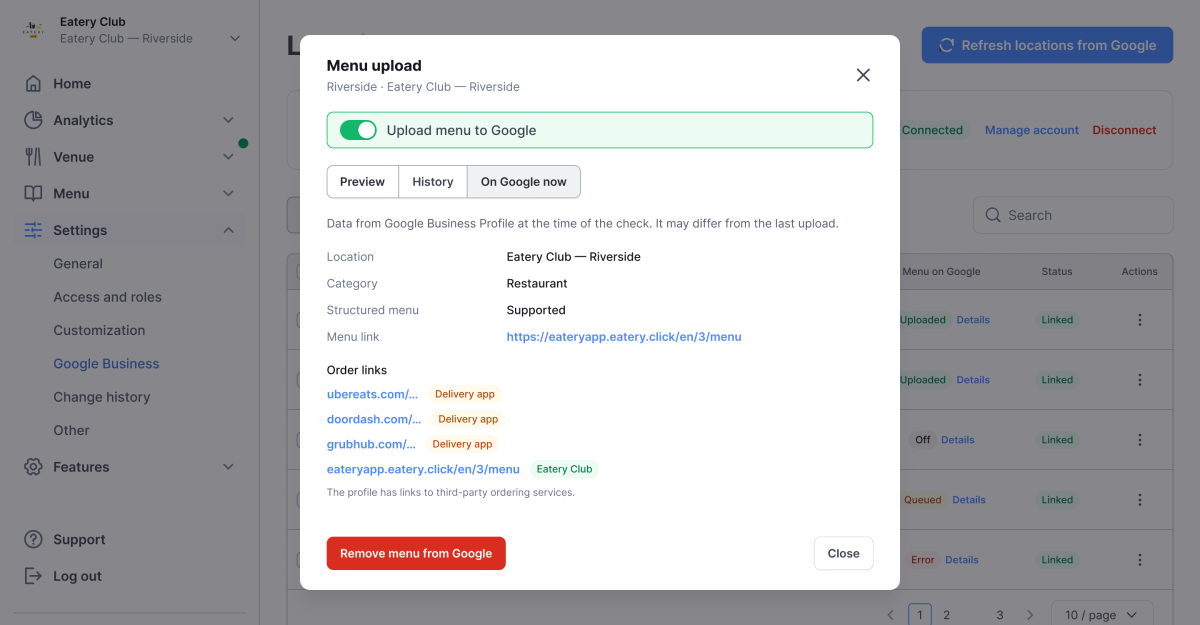
With several locations, checking each profile in Google by hand takes a long time. When your locations are linked to Google locations in Eatery Club, the panel shows for each one whether its Google location is verified, whether menu upload is on and what the result was, and which order links the profile currently has, including delivery apps. Check in Google itself whether your own link is the one marked as preferred. The image shows a RestoAdmin design mockup with sample data, not a screenshot of the live panel, so tab and status names in the panel may differ.
Open your site as a guest would. On a phone, with no saved address and without signing in, check that:
- the menu, with prices, is visible without entering a delivery address;
- each location has its own page with the name, address, phone, and hours written as text;
- the page title and the main heading (H1) name the restaurant and the specific location;
- if the site runs in more than one language, English and Spanish for example, each version opens at its own URL, with the menu and page text in that language.
On an Eatery Club ordering site, each location’s page is built from its restaurant card in the admin panel (restaurant settings). Correct a wrong name, address, hours, or phone number in the card, then check the live page. The site shows the POS menu with prices when «Show the product catalogue?» («Відображати каталог продуктів?» in the card’s Ukrainian interface) is on; when it is off, guests see the PDF menu. Name each location the way guests tell them apart, by brand and street.
Ask ChatGPT and Gemini. Enter the same search with conditions. Note whether they name your restaurant, whether the facts are right, and whether the assistant shows sources.
Sort what you found. Wrong facts go first: hours, phone, address, a closed label, an old menu. Each of them sends a guest to a locked door or a phone nobody answers, however well you rank. Missing actions come next: no menu link, no way to order from the page the guest lands on. Everything else can wait until next month.
Technical checks
These checks do not fit into the hour: they need Search Console, access to the panel, and separate time for each location.
- Indexing. The URL Inspection tool in Search Console shows whether a location page is in Google’s index and which canonical URL Google chose for it. A page outside the index will not appear in ordinary results or as a link in an AI Overview.
- Structured data (JSON-LD, code that describes the restaurant to search engines). The Schema Markup Validator checks all schema.org types, and the Rich Results Test shows which rich results Google can build from the page (testing tools). Neither compares the markup with what the page shows, so compare the name, address, phone, and hours yourself. Before adding your own markup in the «JSON-LD Data» field under «Website Settings», look at what the live location page already has: two different descriptions of one restaurant can confuse search engines.
- Language versions. Each language version of the site has its own URL (
/en/for English, and so on), and the site takes the location’s name and address in each language from the card’s «Translations» («Переклади») block. The language versions point to each other for search engines; check that each of them is indexed. - Titles and headings of static pages are set in the «Custom Page Titles» and «Custom Headings» fields (ordering website settings).
- Menu upload to Google, if it is on: the result for each location in the panel, and the live profile a few days after changes.
- A chain. You don’t need to check every location every month; the plan describes how to pick locations for a manual check.
Local SEO checklist for one location and for a chain
For every location
- One verified profile, with a named person responsible for its category, hours, and phone.
- Special hours entered for each holiday at least a week ahead.
- A menu link to that location’s menu page on your own site. Google also lets you upload menu photos and PDFs; if you use them, replace them when prices change. Menu changes can take 24–48 hours to show on Google Maps and Search (menu editor).
- Your own order link goes to that location’s ordering page.
- For an Eatery Club location linked to a Google location, menu upload sends Google several independent parts: the structured menu from the POS (if the Google location supports it), the menu link, the order link, and dish photos, which go in a separate pass after the menu. Each part has its own result, and the order link’s slot may already be taken by a delivery app. A successful upload result in the panel means the data was sent to Google; the changes may take 24–48 hours to appear on the live profile. When the menu comes into the profile through the API, Google’s menu editor may be unavailable, so change prices in the POS and check the result of the next upload.
- A page on your site for the location, with the name, address, phone, and hours in text.
- The same hours on Google, on your site, and in every delivery app. In Eatery Club the site takes its hours from the location’s card; the hours on the Google profile are still edited in Google.
- Replies to reviews, including the critical ones.
For a chain
- One record of hours and phone numbers for all locations. In Eatery Club the location cards are that record for the site; profiles and delivery apps are updated by hand from the same values, never the other way around.
- A separate tag on each location’s website link in its profile, so the traffic of each location can be told apart.
- Compare locations by interactions per 100 profile views, alongside the raw counts. The ratio evens out differences in view volume and helps you find weak profiles; it does not show the number of guests.
- Menu upload is switched on for each location separately or for several at once. Before sending, the panel shows exactly what will go to Google: the menu link, the number of sections and items, photos Google will not accept, and items that will be skipped, for example those without a price.
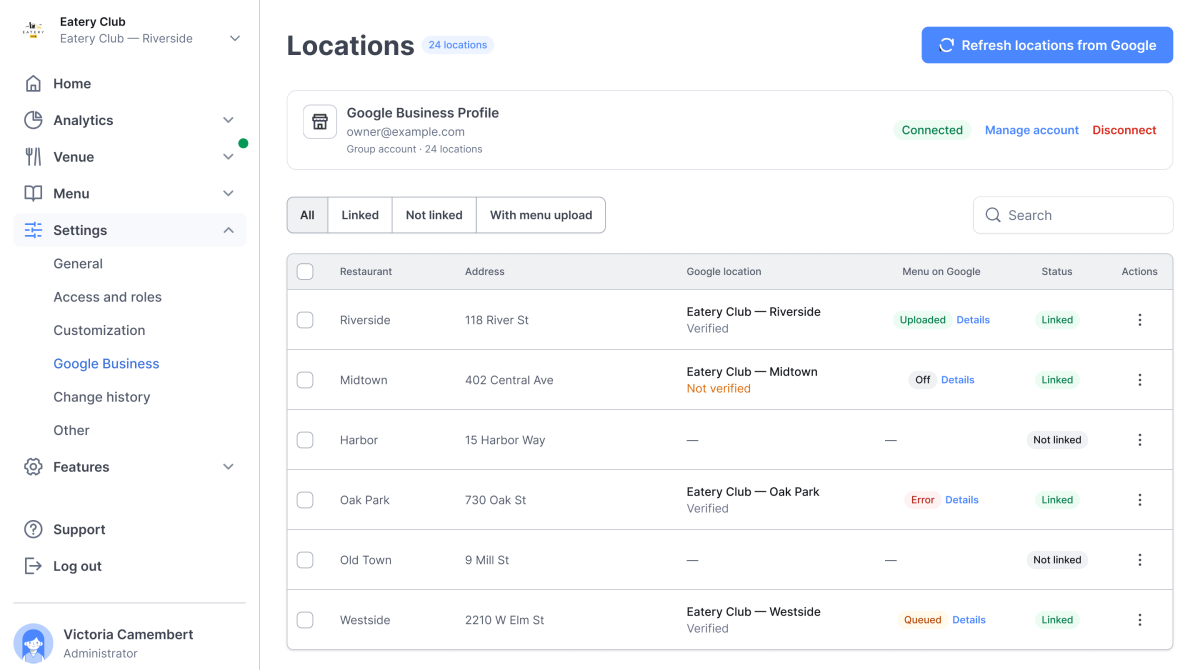
What Google counts, what you count, and what you can only check by hand

What Google counts. The Business Profile performance report shows profile views (a person is counted at most once a day), searches, call-button clicks, direction requests, website clicks, menu interactions, and bookings if you take them through a booking provider. Data is available only for a verified profile, and only the metrics that apply to your business appear. Searches in the report update monthly; they are the terms people used to find your profile, not a keyword tool’s estimate of search volume across the market. The report also counts views, searches, and actions from Google Ads, so note any paid activity before calling a change an SEO result.
Search Console shows your site’s clicks and impressions in Google Search; AI Overviews and AI Mode are included in the overall Web search data. There is also a separate Generative AI performance report: it shows how many times links to your site appeared in AI Overviews and AI Mode, broken down by page, country, device, and date. Google gives August 31, 2026 as the date of the report’s worldwide rollout. The report has no clicks, no mentions without a link, no Business Profile citations, and no orders. If you don’t see the report, Google’s help page gives two possible reasons: the report has not reached your property yet, or links to your site have appeared in these features too rarely.
What you count. Add a UTM tag to the website link in your profile, for example ?utm_source=google&utm_medium=organic&utm_campaign=business_profile, and check the resulting sessions in Google Analytics 4 (GA4). A chain can add &utm_content= with a stable location identifier; use ? or & depending on what your current link looks like. If the site sends an order event to GA4, GA4 reports show orders from sessions with that tag; if not, sessions and orders stay two separate counts.
GA4 has an AI Assistant channel for visits from services such as ChatGPT, Gemini, DeepSeek, Copilot, and Grok. Visits from Google’s AI Overviews and AI Mode are not part of it: GA4 counts them as Organic Search. The channel sees only visits that GA4 recognized by their source, and it does not see mentions without a visit at all.
Orders by source are counted by the ordering system. Eatery Club labels the source as Site, Mobile Site, QR Site, or app (order sources); take the month’s orders from the data export. GA4 is connected to the ordering site through the «Google Analytics ID» field in «Website Settings»; if you change that ID, historical data does not move to the new property.
What you can only check by hand. Write ten searches that guests really use to look for your restaurant, and once a month enter them into Google, ChatGPT, and Gemini. Record whether your restaurant is named, whether the facts are right, which sources the answer cited, and whether it showed sources at all. This is a manual spot check: results depend on location, account, and day. If a fact is wrong, open the source the answer cited and correct it if it is yours.
What no report counts. A direction request does not prove a visit, and a call-button click does not prove a sale. If you cannot do without such assumptions, write them down separately from what was counted.
A worked month
A sample restaurant with one location; all figures are hypothetical.
| What was counted | Where | Unit | Month |
|---|---|---|---|
| Profile views | Business Profile | person, at most once a day | 5,000 |
| Direction requests | Business Profile | direction request | 400 |
| Call-button clicks | Business Profile | click | 150 |
| Website clicks | Business Profile | click | 250 |
| Menu interactions | Business Profile | click on menu content (per user, per day) | 300 |
| Sessions with the profile tag | GA4 | session | 225 |
| All website sessions | GA4 | session | 3,000 |
| Online orders from the website and mobile site | Ordering system | order | 240 |
| Walk-in parties who named Google Maps | Door survey | party | 120 of 500 surveyed |
Rows from different sources count different events, so they are not divided by one another or added up: one purchase can land in several rows, and none of them shows the revenue SEO brought in.
- The four profile actions add up to 1,100 per 5,000 views, or 22 per 100. That is a handy number for comparing months and locations; one person can both call and ask for directions, so it does not stand for 1,100 different guests.
- The profile counts clicks and GA4 counts sessions, so 250 website clicks and 225 sessions with the profile tag do not match. Cookie consent, redirects, and tracking affect the gap.
- All 240 orders come from the whole site’s traffic. GA4 can show how many of them were placed in sessions with the profile tag only if the site sends it an order event.
- Of the 500 parties surveyed, 120, almost a quarter, named Google Maps. These answers come only from people who did come in: some could have found you in Maps without requesting directions, some could be mistaken, and the survey does not see those who did not come.
Write the unverified assumptions down as three independent hypotheses and work out each one separately, in its own units:
| Hypothesis | Formula | Range | Result |
|---|---|---|---|
| A: share of direction requests after which the guest came and bought something | 400 × A | 20–50% | 80 to 200 visits with a purchase |
| B: share of call-button clicks that ended in a purchase | 150 × B | 10–30% | 15 to 45 purchases |
| C: share of sessions with the profile tag that ended in an online order | 225 × C | 4–12% | 9 to 27 orders |
Each range applies only to its own hypothesis: the units in the rows differ, and the events can overlap. C can be narrowed if the site sends orders to GA4; Google’s reports have no such source for A and B. For A, keep direction requests and the share of parties who named Maps as two separate series: if both rise for several months in a row, that is a signal, not a measurement.
A three-month plan
One location. The plan assumes one person is responsible for it and has about two hours a week.
- Days 1 to 14: the facts. Before fixing anything, save the previous month’s profile counts, GA4 sessions, and orders: this is your baseline. Take the quick look and fix wrong facts the same week: hours, phone, address, a closed label, an old menu. Site facts are fixed in the location’s card, Google facts in the profile. Verify the profile if it isn’t verified yet.
- Days 15 to 30: actions, tags, and technical checks. Add the menu link and your own order link to the profile, and mark your preferred option in Google. If the location is linked to a Google location in Eatery Club, switch on menu upload and check the live profile a few days later. Tag the website link. Run the technical checks. Write the ten searches for the manual check and run them once for a baseline; if your guests search in more than one language, write some of the searches in each.
- Days 31 to 60: the first counted month. Keep a dated log of changes to the profile and the site, and keep fixing errors. Collect the profile counts, sessions with the profile tag, the AI Assistant channel, orders by source, and impressions from the Generative AI performance report if your property has it.
- Days 61 to 90: the survey and a second check. For a month, ask guests who walk in without a reservation how they found you, and record the answers separately from direction requests. Run the ten searches again and compare with day 30.
- Day 90: decide. Compare the counts with the baseline and, if you have the data, with the same month last year; see which facts and links still disagree and what could not be measured. Choose the next improvement from the facts and actions you can change.
A chain. There’s no standard time budget for a chain; what it needs is a routine:
- one person responsible for the whole chain and a manager at each location who checks the hours and phone and runs the survey;
- a list of locations: profile, card in Eatery Club, menu upload status, link tag, person responsible;
- batch actions where they exist: menu upload for several locations at once, hours from the single record;
- a manual check of a sample: each month, a few locations with the lowest interactions per 100 profile views and a few chosen at random; before changing a profile, find out whether hours, location, or demand explain the difference.
From then on, check once a month:
- Interactions per 100 profile views, by location. If views rise while interactions do not, look at the query mix, photos, hours, reviews, and menu link before drawing a conclusion.
- The mix of branded and other searches Google shows in the profile report: it helps you judge whether people who search without your name find you more often, but it does not prove more guests.
- Sessions with the profile tag and the AI Assistant channel in GA4.
- Online orders by source.
- The ten searches for the manual check: whether the restaurant is named, whether the facts are right, and whether there are sources and which ones.
- The door survey, once a quarter.
To account for seasonality, compare a month with the same month last year. To avoid reacting to week-to-week swings, look at rolling four-week totals. Google’s SEO Starter Guide says some changes can take effect within a few hours and others can take several months, and suggests waiting a few weeks before judging whether a change worked.
After three months you will have corrected facts, two months of counts, the results of manual checks of AI answers, and a list of what cannot be measured. That is enough to decide what to fix next.
Related news: Google Business Management is now available to all Eatery Club clients.
Published in
Anton Galiukin
Product Owner at Eatery Club. I specialise in digital innovation and product development. I write about technology and the HoReCa industry.
All stories by this author →Related stories

Business
Food cost per dish: how to calculate it and decide what to promote on your menu

Business
What order value should qualify for free delivery? Working it out by contribution

Business
What your average check really shows

Business
