App main menu settings (visual builder)
How to set what the main screen of the mobile app holds: the component list, the preview and a translation check before you save.
Updated: 07.10.2026The «Головна сторінка» (main page) section holds a visual builder for the main screen of the mobile app. You choose which components a guest sees. The set of components is stored in the project configuration, so it differs from one app to another.
The checkout page has a builder of its own: Checkout page settings.
How the builder is laid out
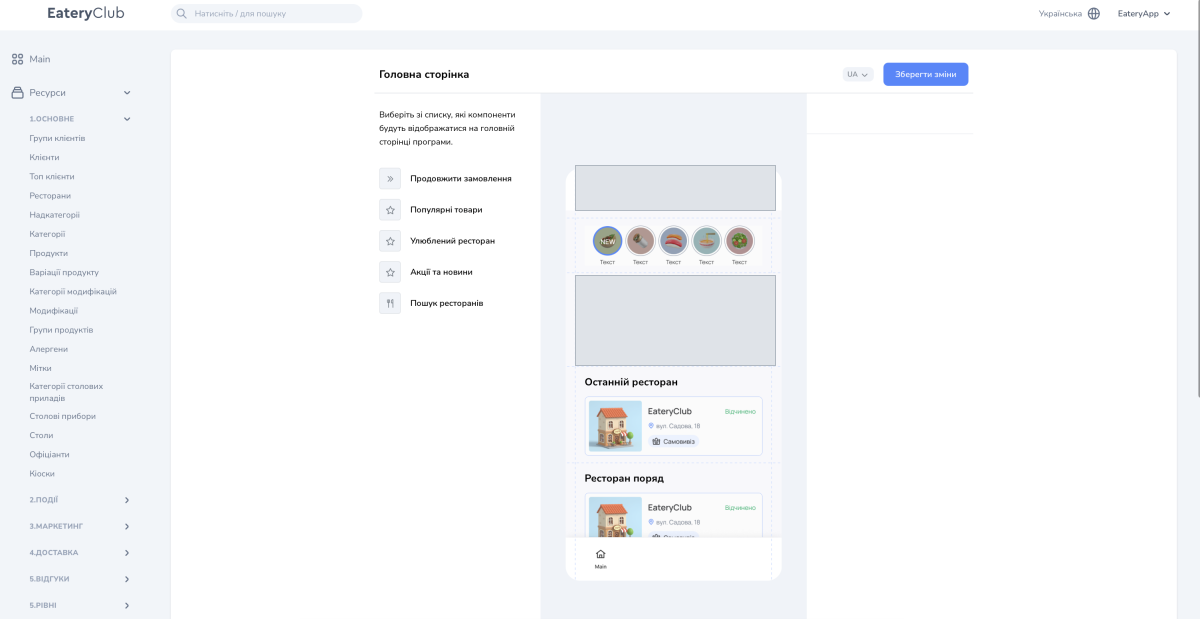
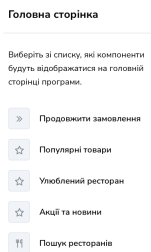
The left column holds the list of components, and above it the panel shows the hint «Виберіть зі списку, які компоненти будуть відображатися на головній сторінці програми», that is select from the list which components will appear on the app main page. The right column shows a preview of the mobile screen and refreshes as soon as you make a change.
The builder also has a language selector and a «Зберегти зміни» (save changes) button. The selector shows the main screen in another language, which is how you check whether component names have translations. The selector lists the languages enabled for your project. Changes take effect only after you click «Зберегти зміни».
Components of the main screen
- «Продовжити замовлення»: continue order;
- «Популярні товари»: popular items;
- «Улюблений ресторан»: favorite restaurant;
- «Акції та новини»: promotions and news;
- «Пошук ресторанів»: restaurant search.
Your project may have a different list, because the set of components comes from the app configuration.
What the preview shows
The preview reproduces the main screen of your own app, so it differs from one project to another. Depending on the configuration, it can contain:
- a header with the guest’s name, avatar and point balance;
- menu category buttons;
- a loyalty card with a QR code and the guest’s card number;
- a card for the most recent restaurant, with its name, address, service type and opening status;
- a news and promotions carousel with a link to the full list;
- a list of nearby restaurants and the distance to each one;
- the bottom navigation bar with its active icons.
How to set what the main screen holds
- Open the «Головна сторінка» page.
- Select the components that should appear on the main screen of the app. A component you do not select is not shown to guests in the app.
- Check the result in the preview.
- Change the language in the selector and check the translations.
- Click «Зберегти зміни».
Where to find it in the admin panel
In the admin panel the page is called «Головна сторінка». Its top right corner holds the language selector and the «Зберегти зміни» button; if you cannot find the page in the side menu, use the search box in the top bar.