
Looker Studio: advanced analytics
Where the Eatery Club panel keeps the links to your Looker Studio reports, how to open them, and whom to ask when a report or access is missing.
Updated: 10.09.2026The Looker Studio Report section («Звіт Looker Studio») holds the links to the Looker Studio reports prepared for your project. The reports open in Looker Studio; the panel keeps the links to them.
Open a report
- Open the Looker Studio Report section. A search box and a filter sit above the list.
- Open the record you need and follow the link: the report opens in Looker Studio.
- Sign in with the Google account that was granted access to that report.
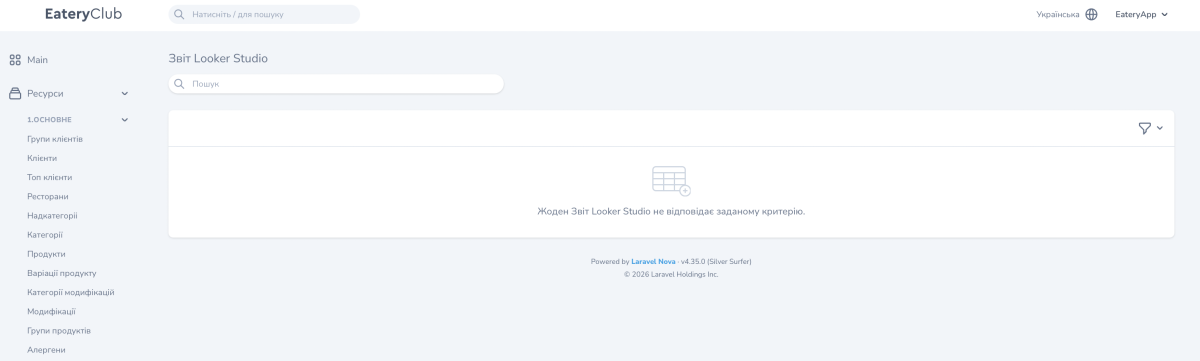
In the screenshot the section has no button for creating a report.
If the list is empty or the report will not open
The message “No Looker Studio Report matches the given criteria” means no record matches the current search and filter. Clear the search and the filter first.
If the list is still empty, ask whoever owns analytics in your company, or Eatery Club support, whether a report has been added to your project and whether your role has access to the section.
Access to the report itself is granted to a specific Google account. Write to Eatery Club support at sales@eatery.club and state which report you need and for which account.
Who sees the section
Whether the section is visible, and what you can do in it, depends on the permissions of your user role. For how the access levels work and where they are managed, see Access and roles: how permissions work in the panel.
Where to find other reports
- Delivery statistics: the operational dashboard: order metrics inside the panel itself.
- Data export: downloading reports: the export log and the ready files.
