Mobile app config settings
What the mobile app config holds in the Eatery Club admin panel: screen backgrounds, logos, icons, Firebase, Meta SDK and the store links.
Updated: 07.10.2026The mobile app config controls how the app looks and how individual interface elements behave: screen backgrounds, logos, icons, the Firebase and Meta SDK connections, and the store links. The Eatery Club team fills in most of these fields while your project is being launched, so do not change them yourself before checking with support. This article is for the moment you prepare or replace your own images: it shows which files to prepare, where to upload them and what happens next.
Who does what
- You prepare the images to the requirements below and upload them into the matching fields of the section.
- The Eatery Club team builds the config and delivers the change to the app. Agree the timing with support.
- Launch fields — Firebase, Meta SDK, themes, store links — stay with the Eatery Club team. They are described below only so that you understand what you see in the list.
Step 1. Prepare the files
- Format: JPEG, JPG, PNG or SVG.
- File size: up to 3 MB.
- Count: one image per field, a new file replaces the previous one.
- Pixel dimensions: each field has its own, listed in step 3. Where there is no separate limit, only the requirements above apply.
You do not need to prepare a set of sizes: every derived iOS and Android size is generated from the single file you upload. Backgrounds are kept in the built config as JPEG, so transparency is not carried over in them; logos and icons are kept as PNG.
Step 2. Open the section
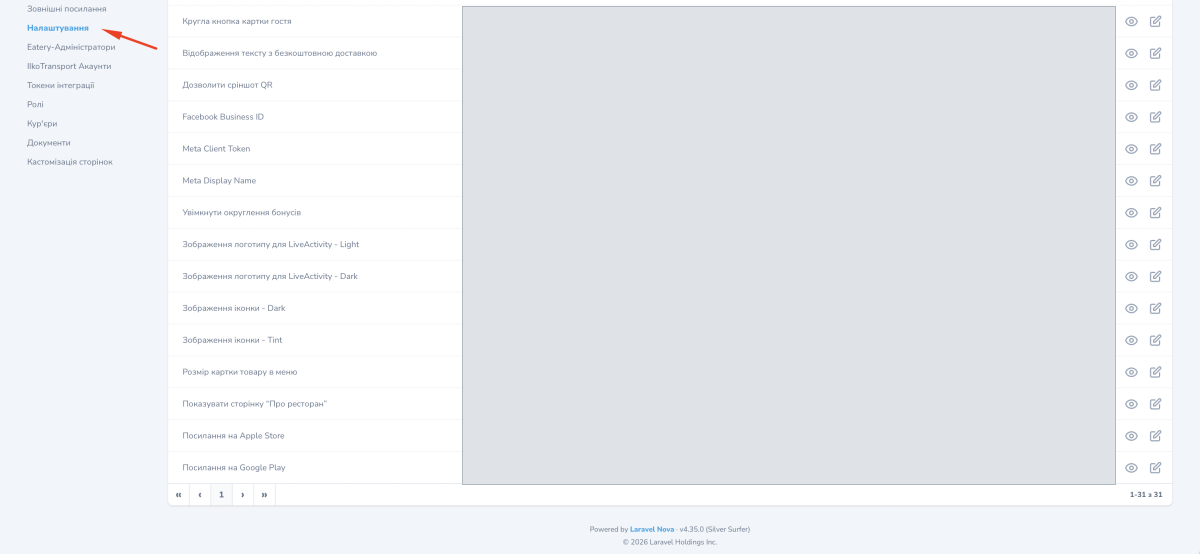
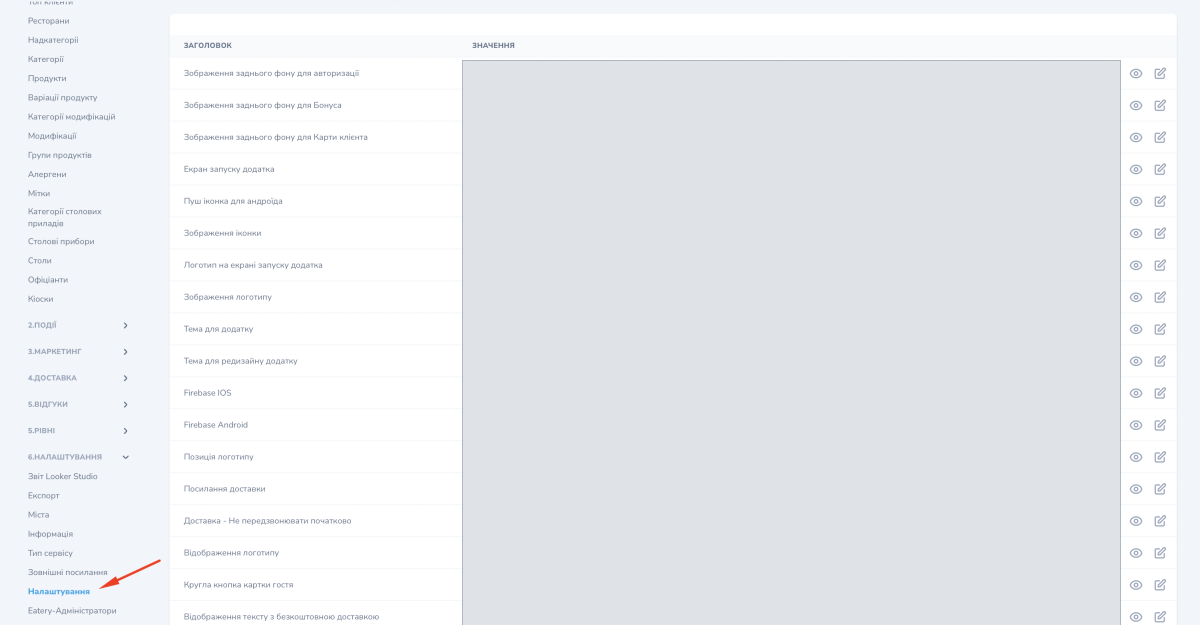
In the side menu expand the 6.Settings («6.Налаштування») group and pick Settings («Налаштування»).
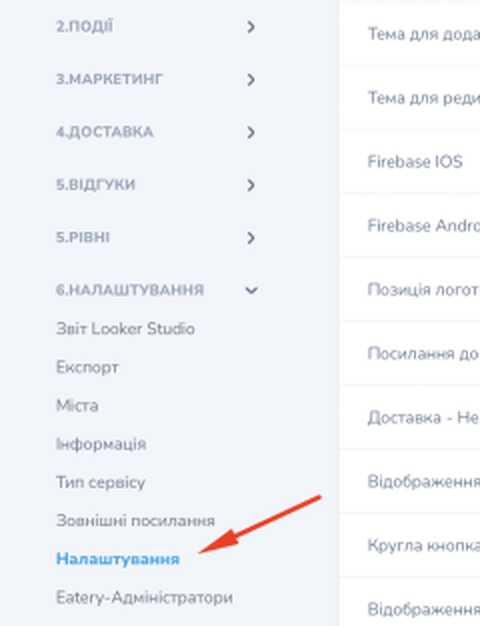
The list of config parameters opens: the parameter name on the left, its value on the right, and a pencil icon at the end of the row that opens the field for editing.
Step 3. Find the field you need
Eight fields at the top of the list take images, and four more further down.
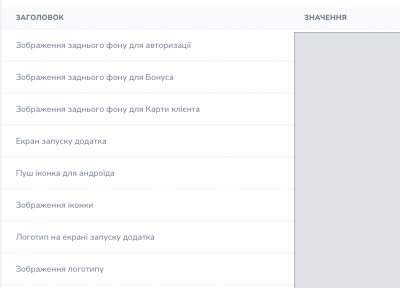
Screen backgrounds
- Sign-in screen background («Зображення заднього фону для авторизації»)
Required field, up to 1126×2437 px (a 3x source). - Loyalty points screen background («Зображення заднього фону для Бонуса»)
Required field, up to 1126×2437 px (a 3x source). - Guest card screen background («Зображення заднього фону для Карти клієнта»)
The background of the screen with the guest card QR code. Optional field, no separate pixel limit. - App launch screen («Екран запуску додатка»)
The image shown while the app starts. Optional field, up to 1126×2437 px (a 3x source).
Logos
- Logo on the launch screen («Логотип на екрані запуску додатка»)
Required field, up to 985×375 px (a 3x source). If no file is uploaded, the main logo is used. - App logo («Зображення логотипу»)
The app’s main logo. Required field, up to 985×509 px; for the current design prepare a 509×509 px square.
Icons
- Android push icon («Пуш іконка для андроіда»)
Required field, a square up to 1025×1025 px; the app shows it at 96 px. The field is not used on iOS. - App icon («Зображення іконки»)
The app icon, light variant. Required field, up to 1025×1025 px (a 1x source), prepare a 1024×1024 px square. On Android the icon is cropped to a circle, so keep the meaningful elements closer to the centre.
Extra icons for iOS
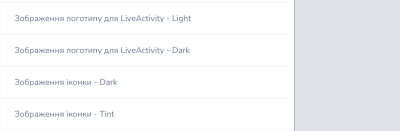
These four fields are optional, they have no separate pixel limit, and they are not used on Android.
- Live Activity logo, Light («Зображення логотипу для LiveActivity – Light») and Live Activity logo, Dark («Зображення логотипу для LiveActivity – Dark»)
The light and dark variants of the logo for Live Activity. - App icon, Dark («Зображення іконки – Dark») and App icon, Tint («Зображення іконки – Tint»)
Additional variants of the app icon, dark and tinted. Prepare them in the same square as the main icon.
Step 4. Save and check
Open the field with the pencil, upload the file and save the change. Once saved, the image is visible in the value column next to the field name.
In the app the change appears after the Eatery Club team builds the config. At that point the files are checked once more: everything except SVG must be under 4 MB and no larger than 2500 px on either side, and a required field cannot be left empty.
Integrations
The Eatery Club team fills in these fields while your project is being launched.
- «Firebase IOS»: the
GoogleService-Info.plistfile for push notifications and analytics on iOS. - «Firebase Android»: the
google-services.jsonfile for the same purposes on Android. - «Facebook Business ID»: the identifier that links the app to an advertising account.
- «Meta Client Token» and «Meta Display Name»: values for the Meta SDK integration.
- Apple Store link («Посилання на Apple Store»): the link to the app on the App Store.
- Google Play link («Посилання на Google Play»): the link to the app on Google Play.
- Delivery link («Посилання доставки»): the project’s branded URL.
App appearance and behavior
- Theme for the app redesign («Тема для редизайну додатку») and App theme («Тема для додатку»): two separate fields, each holding a theme code name.
- Logo position («Позиція логотипу»): where the logo sits in the app.
- Product card size in the menu («Розмір картки товару в меню»): the size product cards are shown at in the menu.
- Show the logo («Відображення логотипу»): whether the logo is shown.
- Round guest card button («Кругла кнопка картки гостя»): whether the guest card button is round.
- Show the free delivery text («Відображення тексту з безкоштовною доставкою»): whether the free delivery text is shown.
- Delivery, do not call back by default («Доставка – Не передзвонювати початково»): whether the “do not call back” option is preselected for delivery orders.
- Allow the QR screenshot («Дозволити скріншот QR»): this setting concerns a screenshot of the guest card page with the QR code; check with the Eatery Club team how it behaves on a given platform.
- Enable rounding of loyalty points («Увімкнути округлення бонусів»): whether loyalty points are shown as whole numbers.
- Show the About the restaurant page («Показувати сторінку “Про ресторан”»): whether the app shows the About the restaurant («Про ресторан») (About the restaurant) page.