
Emoji reactions for news
Learn how to enable or hide the available emoji reactions for Eatery Club news and view reaction counts in an event’s details.
Updated: 09.09.2026Guests can react to news with emojis. In the Emojis section («Емодзі»), you choose which reactions are available.
The emoji set is fixed. You can enable or disable existing reactions. Adding custom emojis, changing them, and deleting them are not supported.
Configure reactions
- In the Events group («Події»), open Emojis («Емодзі»).
- Open an emoji for editing. Set Active («Активний») to Yes to show the reaction, or No to hide it.
- Save the change. Repeat for any other emojis you want to enable or disable.
- Open a news post in the app and check which reactions are available.
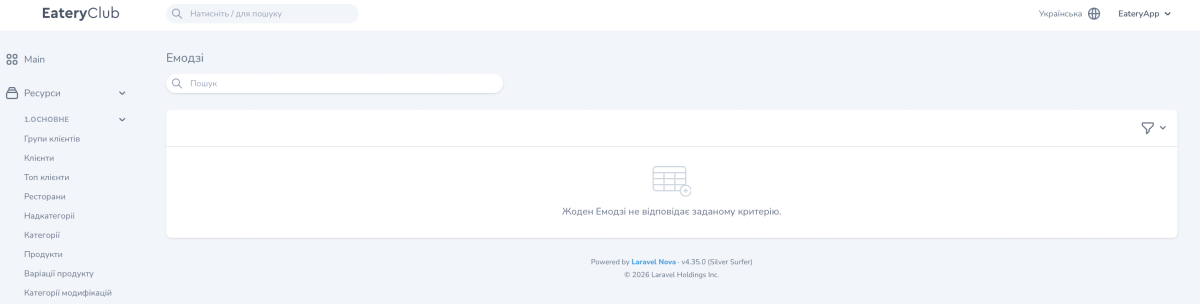
If the list is empty, check the search and filters first. If no emojis appear, contact Eatery Club support to check whether reactions are available for your project.
View guest reactions
Open the event’s detail page to view its reaction counts. To set up the news post and push notification, see Events: news and push notifications.
