Ordering website settings: the complete guide
Every setting for the ordering website: branding, GTM and Analytics, guest registration, custom meta tags, JSON-LD for a restaurant and the WebSocket key.
Updated: 04.09.2026Purpose
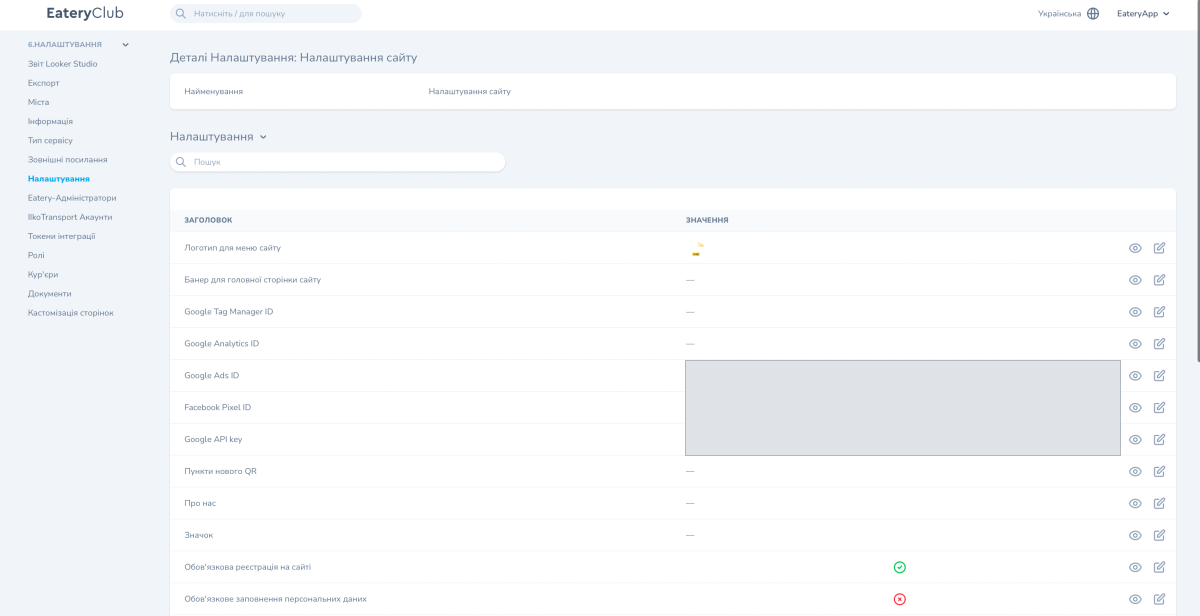
The «Website Settings» section covers the ordering website: branding, analytics and tracking, site behaviour and guest registration, SEO customization and technical keys. These settings apply to the ordering website, not to the mobile app.
The full list of settings
Branding (5)
- «Website Menu Logo». The logo shown in the website navigation.
- «Hero Banner». The main banner on the homepage.
- «About Us». A text page about the venue.
- «Favicon». The site favicon, the small image on the browser tab.
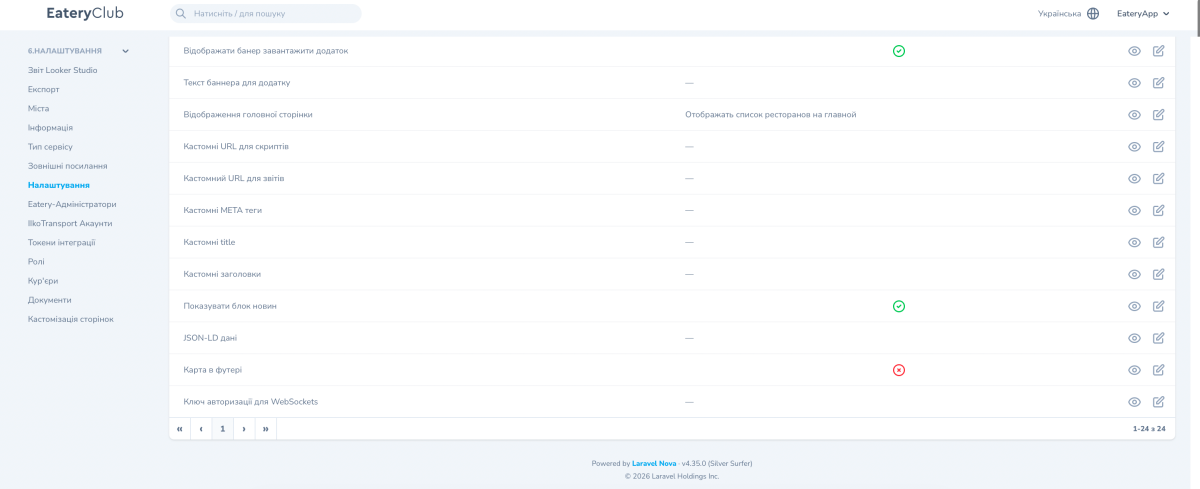
- «Footer Map». A toggle for the mini map with restaurants in the site footer.
Analytics and tracking (5)
- «Google Tag Manager ID». The Google Tag Manager container ID. It starts with «GTM-».
- «Google Analytics ID». The measurement ID of a Google Analytics 4 property. It starts with «G-».
- «Google Ads ID». The Google Ads conversion ID. It starts with «AW-».
- «Facebook Pixel ID». The pixel ID used for Facebook campaign tracking.
- «Google API Key». A key for Google services. The value is masked in the panel.
Behaviour and registration (6)
- «Require Website Registration». A toggle that makes guest registration on the site mandatory.
- «Require Personal Information». A toggle that makes the guest fill in personal details.
- «Show “Download the App” Banner». A toggle for the banner with links to the app.
- «App Banner Text». Your own text for that banner. If the field is empty, the default text is used.
- «Homepage Layout». What the homepage shows, the restaurant list for example.
- «Show News Section». A toggle for the news block on the site homepage.
SEO and customization (6)
- «Custom Script URLs». Addresses of external JavaScript loaded into the site, chatbots for example.
- «Custom Reports URL». Your own address for external reports.
- «Custom Meta Tags». Your own SEO meta tags for the site pages.
- «Custom Page Titles». Your own SEO page titles.
- «Custom Headings». H1 and H2 headings for static pages.
- «JSON-LD Data». Schema.org structured data that search engines use to build rich results.
Technical (1)
- «WebSocket Authorization Key». The key the site uses to connect to the WebSocket channel for real-time features.
How to describe a restaurant with JSON-LD
JSON-LD passes structured data about the venue to search engines. Google decides on its own whether to show a rich result; having the markup does not guarantee it. The data in the markup has to match what the guest sees on the site.
- Type. For a restaurant, use the most specific «LocalBusiness» subtype: «Restaurant».
- Required fields. Add «name» and «address» of type «PostalAddress».
- Additional fields. To describe the venue more fully, add «telephone», «url», «geo», «openingHoursSpecification» and «servesCuisine».
- Menu. To describe the menu in Schema.org you can use a nested model: «Menu», «MenuSection» and «MenuItem».
- Match with the page. The markup has to match the data the guest sees on the site.
Scenario: connecting Google Analytics 4
- Create a GA4 property in Google Analytics.
- Copy the measurement ID.
- Open «Settings» and go to «Website Settings».
- Paste the value into the «Google Analytics ID» field.
- Save your changes.
After that, check in GA4 that events from your site are arriving.
Scenario: enabling the «Download the App» banner
- Open «Settings» and go to «Website Settings».
- Turn on «Show “Download the App” Banner».
- If you need to, fill in «App Banner Text». If you leave the field empty, the default text is used.
- Save your changes.
Result: a banner with App Store and Google Play links appears at the top of the mobile version of the site. The store links themselves come from the «Configuration Settings» section.
Scenario: setting up JSON-LD
- Open «Settings», go to «Website Settings» and find the «JSON-LD Data» field.
- Prepare «Restaurant» markup following the sample below, substituting your own venue data: the name, address, telephone, site address, coordinates, opening hours and cuisine.
{
  "@context": "https://schema.org",
  "@type": "Restaurant",
  "name": "Eatery Club Sushi",
  "url": "https://sushi.example.eatery.club",
  "telephone": "+380993456982",
  "servesCuisine": "Japanese",
  "address": {
    "@type": "PostalAddress",
    "streetAddress": "вул. Дерибасівська, 31",
    "addressLocality": "Одеса",
    "addressCountry": "UA"
  },
  "geo": {
    "@type": "GeoCoordinates",
    "latitude": 46.4846,
    "longitude": 30.7326
  },
  "openingHoursSpecification": {
    "@type": "OpeningHoursSpecification",
    "dayOfWeek": ["Monday", "Tuesday", "Wednesday", "Thursday", "Friday", "Saturday", "Sunday"],
    "opens": "09:00",
    "closes": "22:00"
  }
}- Paste the markup into the «JSON-LD Data» field and save your changes.
- Check the result in the Google Rich Results Test.
The sample is deliberately shown as a monospaced block: in an ordinary paragraph WordPress replaces straight quotes with typographic ones, and the copied JSON stops being valid.
Changing Google IDs
After you change the Google Analytics ID or the Google Ads ID, the previous data is not carried over to the new account. Change them only when you are deliberately moving to a new account.
Where to find it in the admin panel
The «Website Settings» section inside «Settings».